
Most home PCs run with an administrator account. That’s convenient, but it also means malware running under your account can more easily gain admin rights. Administrator protection is a newer Windows 11 security feature that changes how admin rights work.
With it on, your account normally runs without admin rights. When an app needs them, Windows asks you to confirm with Windows Hello (PIN, fingerprint or face) and creates a temporary, separate admin token just for that task. When the task ends, the rights are gone.
Before you start
- The feature is rolling out gradually and may only appear on recent Windows 11 builds. If you can’t find it, check Settings > Windows Update for updates.
- You need to be signed in with an administrator account.
- Set up Windows Hello in Settings > Accounts > Sign-in options first.
- A restart is required after changing the setting.
Turn it on in Windows Security
- Open the Start menu, search for Windows Security and open it.
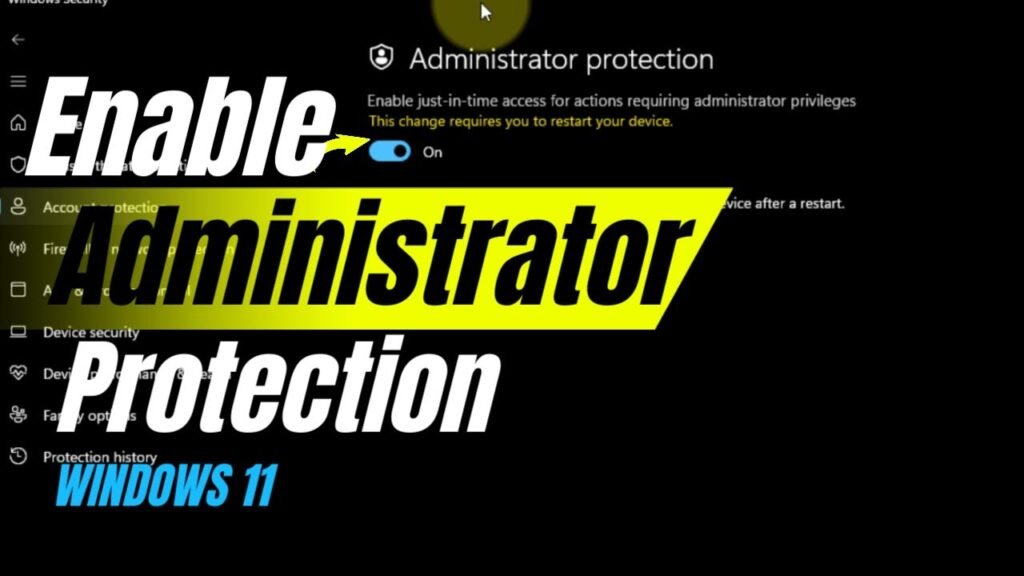
- Click Account protection.
- Find the Administrator protection section and turn the switch on.
- Confirm the prompt, then restart your PC.
Turn it on with Group Policy (Pro, Enterprise, Education)
- Press Windows + R, type
gpedit.mscand press Enter. - Go to Computer Configuration > Windows Settings > Security Settings > Local Policies > Security Options.
- Open User Account Control: Configure type of Admin Approval Mode.
- Choose Admin Approval Mode with Administrator protection, click OK and restart.
If this policy isn’t listed, your Windows build doesn’t include the feature yet.
What changes after you turn it on
- Admin prompts look different and ask for Windows Hello instead of a simple Yes button.
- Apps you run as administrator use a separate system-managed account, so some settings they save may not appear in your normal profile.
- A few older apps or scripts that expect permanent admin rights may behave differently.
If something important stops working, turn the switch off again and restart.
Frequently asked questions
Is this the same as UAC?
It builds on User Account Control but is stricter. Regular UAC lets your account switch into full admin mode with one click. Administrator protection keeps admin rights separate and short-lived.
Does it slow down my PC?
No. The only difference you’ll notice is an extra Windows Hello confirmation when installing apps or changing system settings.