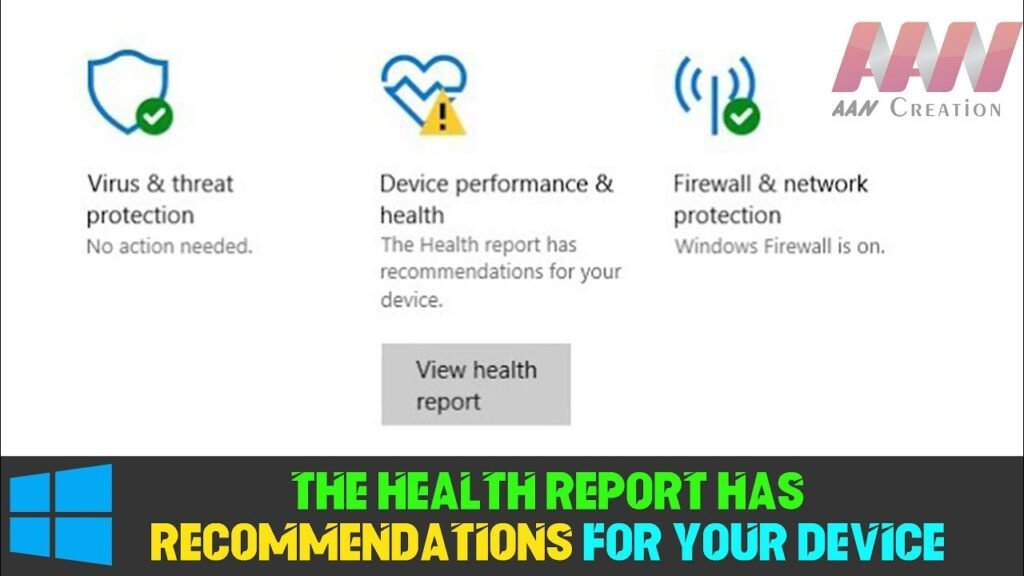

Windows Security sometimes shows a yellow warning under Device performance & health, saying the health report has recommendations for your device, and that this can affect battery life or performance. It’s not a virus alert. It’s Windows telling you something on your PC needs attention.
Here’s how to find out what it is and fix it.
Open the health report
- Open the Start menu, search for Windows Security and open it.
- Click Device performance & health.
- Look at the Health report section. Each item shows a green check or a yellow warning: Storage capacity, Battery life, Apps and software and sometimes Time service.
- Click the item with the warning to see the recommendation.
The report is updated after Windows runs a scan, so the date and time of the last scan appear at the top.
Fix a storage capacity warning
- Open Settings > System > Storage.
- Click Temporary files, check what you want to remove and click Remove files.
- Turn on Storage Sense so Windows cleans up automatically.
- Uninstall apps you don’t use in Settings > Apps > Installed apps.
Fix a battery life warning
- Go to Settings > System > Power & battery (on Windows 10, Settings > System > Battery).
- Check Battery usage to see which apps use the most power.
- Lower screen brightness and set a shorter screen-off time.
- Turn on Energy saver (or Battery saver) when you’re unplugged.
Fix an apps and software warning
This usually means an app or driver failed to update or isn’t working properly. Click the item to see which one. Then:
- Run Settings > Windows Update > Check for updates.
- In the Microsoft Store, go to Library and click Get updates.
- Repair or reinstall the app named in the report.
Fix a time service warning
Go to Settings > Time & language > Date & time, turn on Set time automatically and click Sync now.
Frequently asked questions
How long until the warning disappears?
The warning clears after the next health scan. This can take a few hours. Restarting your PC can help it update sooner.
Is my PC in danger?
No. These are maintenance tips, not security threats. Viruses and other threats appear under Virus & threat protection.