
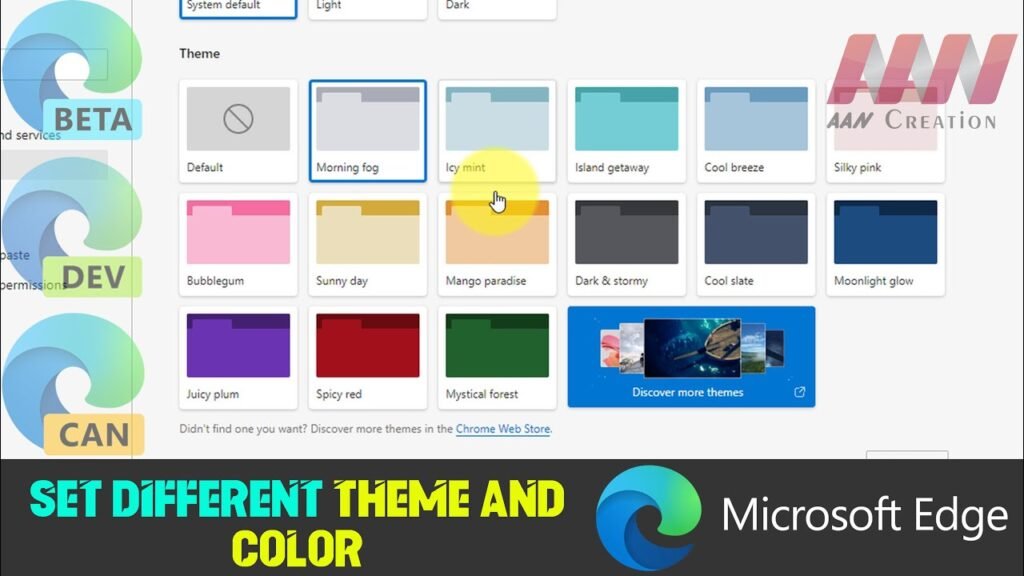

Microsoft Edge doesn’t have to look plain grey. You can switch between light and dark mode, choose a colour theme for the tabs and toolbar, or install a full theme with a background picture. Each Edge profile can even have its own theme, which makes it easy to tell work and personal windows apart.
Switch between light and dark mode
- Click the three-dot menu in the top-right corner and choose Settings.
- Click Appearance in the left menu.
- Under the overall appearance option, choose Light, Dark or System default. System default follows your Windows colour mode.
Choose a colour theme
- Stay in Settings > Appearance.
- In the Theme section, click one of the colour tiles.
- The tabs, toolbar and new tab page change straight away. Click another tile to try a different colour.
Install a theme from Edge Add-ons
- In the Theme section, click Discover more themes. This opens the Edge Add-ons themes page.
- Pick a theme and click Get.
- The theme is applied right away. Themes from the Chrome Web Store also work if you allow extensions from other stores.
Use a different theme for each profile
Themes are saved per profile. Switch profiles by clicking your profile picture in the top-left corner, then change the theme in that profile’s Settings > Appearance. Now each profile window has its own colour.
Remove a theme
Go back to Settings > Appearance and choose one of the built-in colours, or the default theme. Installed themes can also be removed from edge://extensions.
Frequently asked questions
Can I make websites dark too?
Edge’s dark mode changes the browser and sites that support dark mode. For other sites, a trusted dark mode extension from Edge Add-ons can help.
Why can’t I change the theme?
On work or school PCs, an administrator may lock the theme. Updating Edge from Settings > About Microsoft Edge can also add newer options.
Does the theme sync to my other computers?
If you’re signed in to Edge with the same account and sync is on, many settings follow you. If the theme doesn’t appear on another PC, set it again in Settings > Appearance.

