
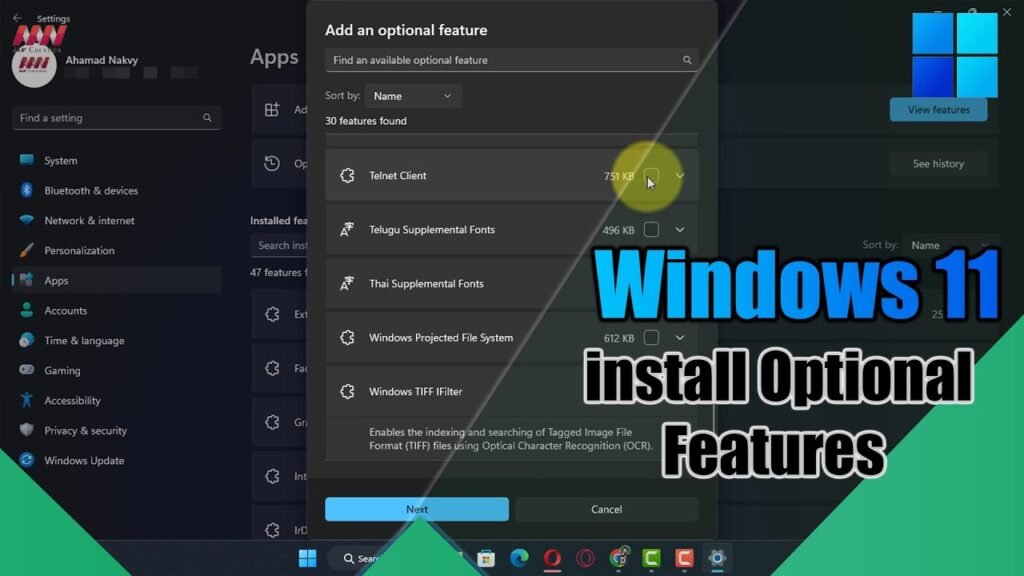

Windows 11 does not install every tool by default. Extra components such as Wireless Display, RSAT tools for IT admins, OpenSSH Server or extra fonts are available as Optional features. You can add them for free from Settings and remove them when you no longer need them.
How to install an optional feature
- Press Windows + I to open Settings.
- Go to System > Optional features. On some older builds it is under Apps > Optional features.
- Next to Add an optional feature, click View features.
- Type the name of the feature in the search box, for example Wireless Display.
- Tick the box next to the feature and click Next.
- Click Add (or Install). Windows downloads and installs it.
You can follow the progress under Recent actions on the same page. Some features ask you to restart the PC before they work.
How to remove an optional feature
- Open Settings > System > Optional features.
- Scroll to the list of Added features.
- Click the feature to expand it and choose Remove.
- Restart the PC if asked.
Removing features you don’t use frees a little disk space, but don’t remove items you don’t recognise. Some, such as Notepad or WordPad on older builds, are used by everyday tasks.
Classic Windows features
Some components are still managed in the older Windows Features window, for example Hyper-V, .NET Framework 3.5, Windows Sandbox and Windows Subsystem for Linux.
- On the Optional features page, scroll down and click More Windows features. You can also press Windows + R, type
optionalfeaturesand press Enter. - Tick the box for the feature you want, or clear it to remove it.
- Click OK and restart if asked.
Useful tips
- Features are downloaded from Windows Update, so you need an internet connection.
- If an install fails, run Windows Update first and try again.
- The same steps work on Windows 10 under Settings > Apps > Optional features.
Frequently asked questions
Why does an optional feature fail to install?
The most common causes are no internet, a pending Windows update or a PC managed by work or school that blocks downloads. Install pending updates, restart and try again.
Are optional features free?
Yes. They are part of your Windows licence and are downloaded directly from Microsoft.

