
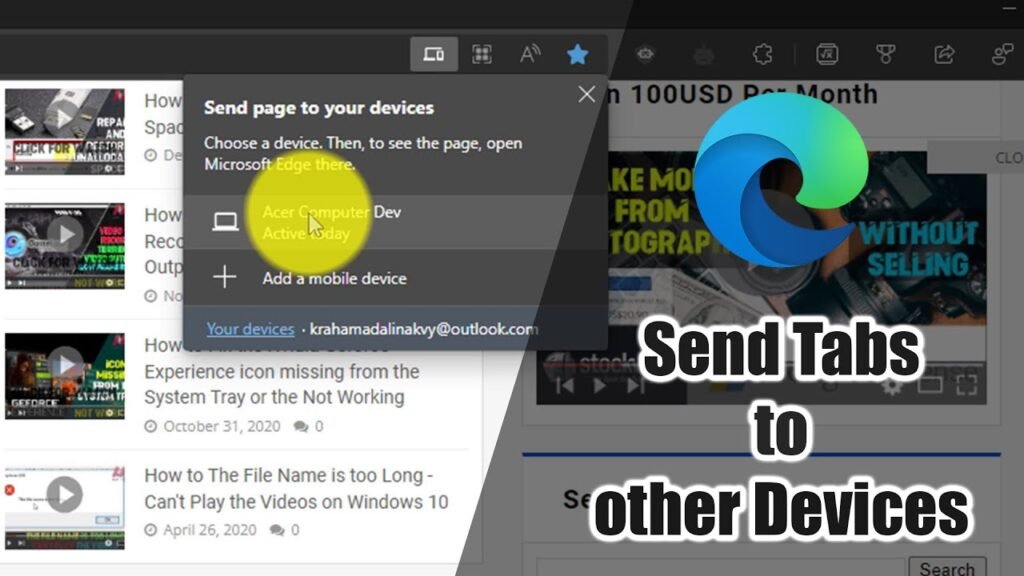

You find a recipe or article on your computer, but you want to read it on your phone later. Microsoft Edge can move pages between your devices, as long as you’re signed in with the same Microsoft account on both. Here are the easiest ways to do it.
Before you start: turn on sync
- Install Microsoft Edge on your phone or other PC and sign in with the same Microsoft account.
- On your PC, open Edge and go to Settings > Profiles > Sync.
- Make sure sync is turned on, and that Open tabs and History are switched on.
- Do the same on the other device.
Method 1: Send the page directly
- Open the page you want to send.
- Right-click the tab, or right-click an empty part of the page.
- Choose the option to send the tab or page to your devices.
- Pick the device you want from the list.
The other device shows a notification. Tap it to open the page. If you don’t see a send option, use one of the methods below, which work on every current version of Edge.
Method 2: Open it from synced tabs
With Open tabs sync on, every device can see the tabs open on your others.
- On a PC: press Ctrl + H to open History, then look for the tabs from other devices section and click the page.
- On a phone: tap the tabs button at the bottom, then switch to the view that shows tabs from your other devices.
Method 3: Use Drop
Drop is a small chat-style panel in Edge for sending links, notes and files to yourself.
- On your PC, copy the address of the page from the address bar (Ctrl + L, then Ctrl + C).
- Open Drop from the Edge sidebar or the three-dot menu. If you can’t see it, search for Drop in Settings.
- Paste the link and press Enter.
- On your phone, open Edge, open Drop from the menu and tap the link.
Files sent with Drop are stored in your OneDrive, so they use some of your OneDrive space.
Useful tips
- To share with someone else instead of yourself, use the Share option in the Edge menu.
- Collections in Edge also sync, so saving a page to a collection is a good way to keep it for later on every device.
Frequently asked questions
Why can’t I see my other devices in Edge?
Both devices must be signed in to the same Microsoft account with sync turned on. Open Settings > Profiles > Sync on each device and check that sync is active.
Does this work with a work or school account?
It can, but your organisation may block sync or Drop. If the options are missing on a work PC, ask your IT team.

