
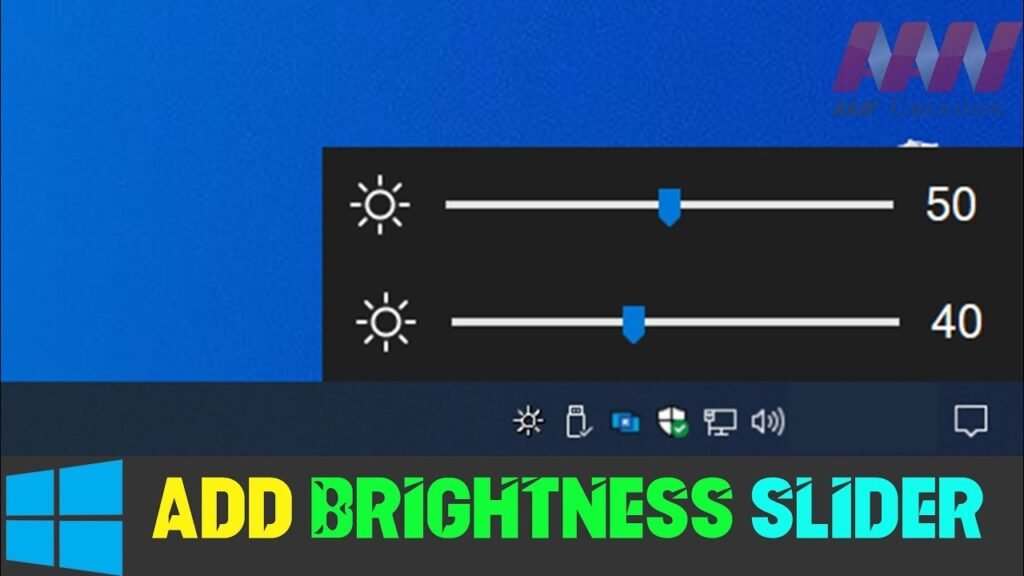

Changing screen brightness should take one second, but the slider can be hard to find. On laptops and tablets, Windows has a quick brightness slider right next to the clock. Here’s where it is and what to do if it’s missing.
Brightness slider on Windows 11
- Click the network, volume or battery icons in the bottom-right of the taskbar, or press Windows + A.
- The Quick Settings panel opens. The brightness slider has a sun icon.
- Drag the slider left to dim the screen or right to make it brighter.
If the slider isn’t there, click the pencil icon (Edit quick settings) at the bottom of the panel, click Add and choose Brightness if it’s offered, then click Done.
Brightness slider on Windows 10
- Click the Action Center icon at the far right of the taskbar, or press Windows + A.
- Look for the brightness slider at the bottom of the panel.
- If it’s hidden, click Expand above the quick action tiles.
To add it, go to Settings > System > Notifications & actions and click Edit your quick actions, then add the brightness item.
Change brightness in Settings
On both versions you can always go to Settings > System > Display and use the Brightness slider there.
Why is there no brightness slider?
- You use a desktop monitor: most external monitors are controlled by the buttons on the monitor itself, not by Windows. Use the monitor’s on-screen menu instead.
- Display driver problem: open Device Manager, expand Display adapters and Monitors. If you see a warning icon or Microsoft Basic Display Adapter, install the graphics driver from your PC maker or Windows Update.
- Disabled monitor device: in Device Manager under Monitors, right-click Generic PnP Monitor and choose Enable device if that option is shown.
Useful tips
- Many laptops have brightness keys, usually on the F-keys with a sun symbol. Some need the Fn key held down.
- Under Settings > System > Display > Brightness, you may find an option to change brightness automatically when lighting changes.
Frequently asked questions
Can I control an external monitor’s brightness from Windows?
Some monitors support it through extra software from the maker, but by default Windows only controls built-in laptop screens.
Does lower brightness save battery?
Yes. The screen is one of the biggest power users on a laptop, so lowering brightness helps the battery last longer.

