
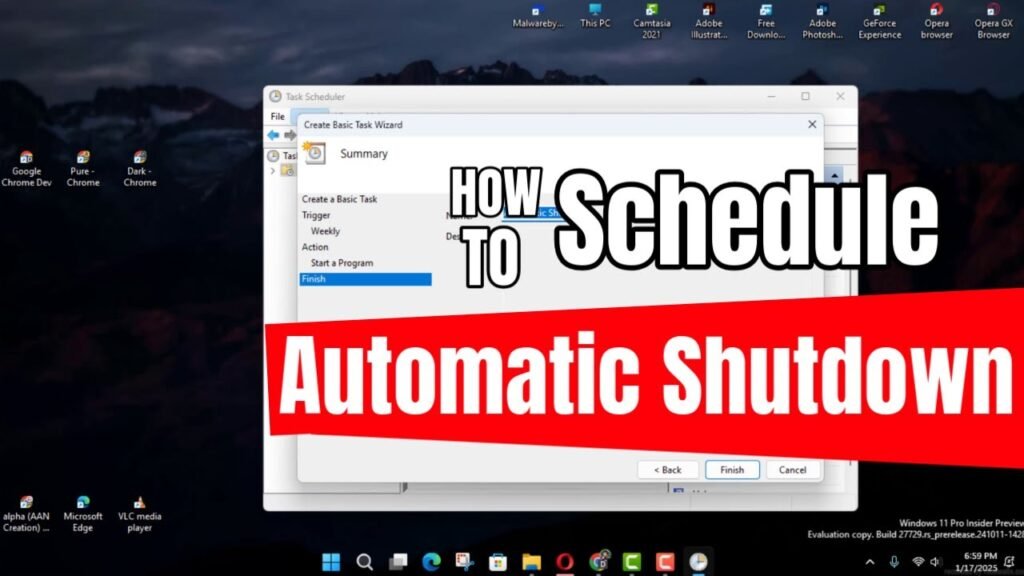

Want your PC to turn off after a long download, or every night so it doesn’t stay on until morning? Windows 11 can shut down automatically without any extra software. You can use a one-time timer or a daily schedule.
Method 1: Shut down after a timer
- Press Windows + R to open Run.
- Type this command and press Enter:
shutdown /s /t 3600 - Windows shows a message that it will shut down. The number is in seconds, so 3600 is one hour.
Some useful times: 1800 = 30 minutes, 7200 = 2 hours, 10800 = 3 hours.
To cancel the timer, open Run again and type:
shutdown /aSave your work before the timer ends. When it reaches zero, apps are closed and unsaved changes may be lost.
Method 2: Shut down every day at the same time
- Open the Start menu, search for Task Scheduler and open it.
- In the right panel, click Create Basic Task.
- Give it a name, such as Nightly shutdown, and click Next.
- Choose Daily (or Weekly) and click Next.
- Set the start date and time, for example 11:30 PM, and click Next.
- Choose Start a program and click Next.
- In Program/script, type
shutdown. In Add arguments, type/s /t 60. - Click Next, then Finish.
The /t 60 part gives you a one-minute warning, so you can cancel with shutdown /a if you’re still working.
Change or remove the schedule
Open Task Scheduler and click Task Scheduler Library on the left. Find your task, then right-click it to Disable, Delete or open Properties to change the time.
Useful tips
- Use
shutdown /r /t 3600to restart instead of shutting down. - Make a desktop shortcut: right-click the desktop, choose New > Shortcut and enter
shutdown /s /t 3600as the location. - For laptops, consider sleep instead. Go to Settings > System > Power & battery to set screen and sleep times.
Frequently asked questions
Will scheduled shutdown work if the PC is asleep?
No. A sleeping PC won’t run the task unless you tick Wake the computer to run this task in the task’s Conditions tab.
Does this work on Windows 10?
Yes. Both the shutdown command and Task Scheduler work the same way on Windows 10.

