
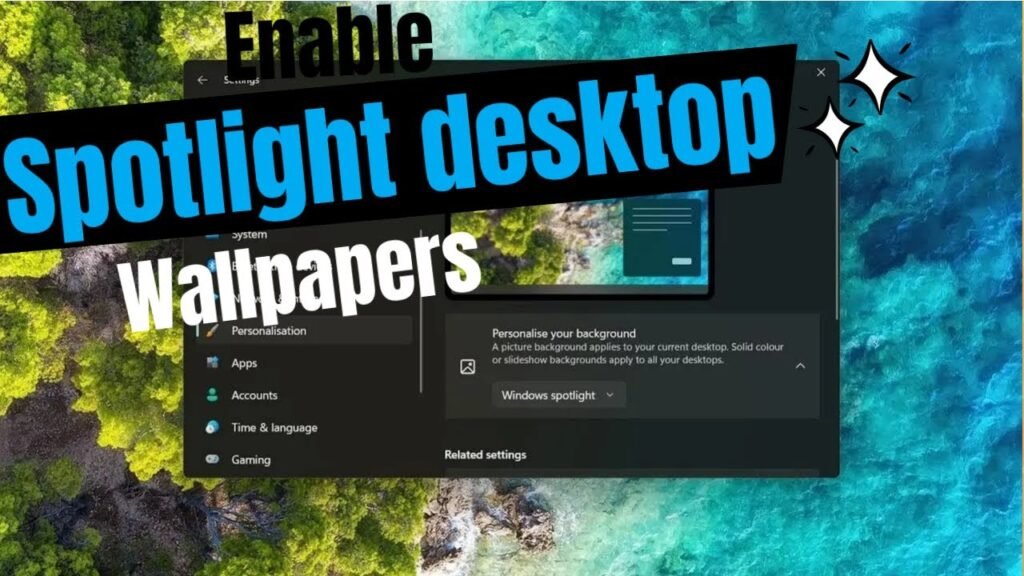

Bored of the same wallpaper? Windows Spotlight automatically sets a new, high-quality photo as your background, usually landscapes and landmarks from around the world. It started on the lock screen and now works on the desktop too.
Turn on Spotlight for the desktop (Windows 11)
- Right-click an empty area of the desktop and choose Personalize, or open Settings > Personalization.
- Click Background.
- Open the drop-down next to Personalize your background.
- Choose Windows spotlight.
The new wallpaper appears after a moment. It needs an internet connection to download pictures.
Learn about or change the picture
When Spotlight is on, a Learn about this picture icon appears on the desktop.
- Double-click it to open information about the photo in your browser.
- Right-click it to switch to the next picture, or to say whether you like the current one so Spotlight can show more of what you like.
Turn on Spotlight for the lock screen
- Go to Settings > Personalization > Lock screen.
- Next to Personalize your lock screen, choose Windows spotlight.
Windows 10
On Windows 10, Spotlight for the lock screen is in Settings > Personalization > Lock screen. Recent Windows 10 version 22H2 updates also added Windows spotlight as a desktop background option in Settings > Personalization > Background. If you don’t see it, install the latest updates from Windows Update.
If Spotlight doesn’t change or stays black
- Check the internet: Spotlight needs a connection to fetch new pictures.
- Metered connection: if your network is set as metered, Windows may delay downloads.
- Switch it off and on: choose Picture, wait a moment, then choose Windows spotlight again.
- Update Windows: install pending updates and restart.
Save a Spotlight picture you like
Windows doesn’t offer a simple save button for Spotlight images. The easiest way to find a picture again is to double-click Learn about this picture, which opens a search for the photo’s location and name in your browser.
Frequently asked questions
How often does the Spotlight wallpaper change?
Windows changes it automatically, usually about once a day. You can switch sooner by right-clicking the Learn about this picture icon.
Can I remove the Learn about this picture icon?
Windows 11 doesn’t offer a simple built-in switch for this in every version. Choosing a regular Picture background removes it.

