
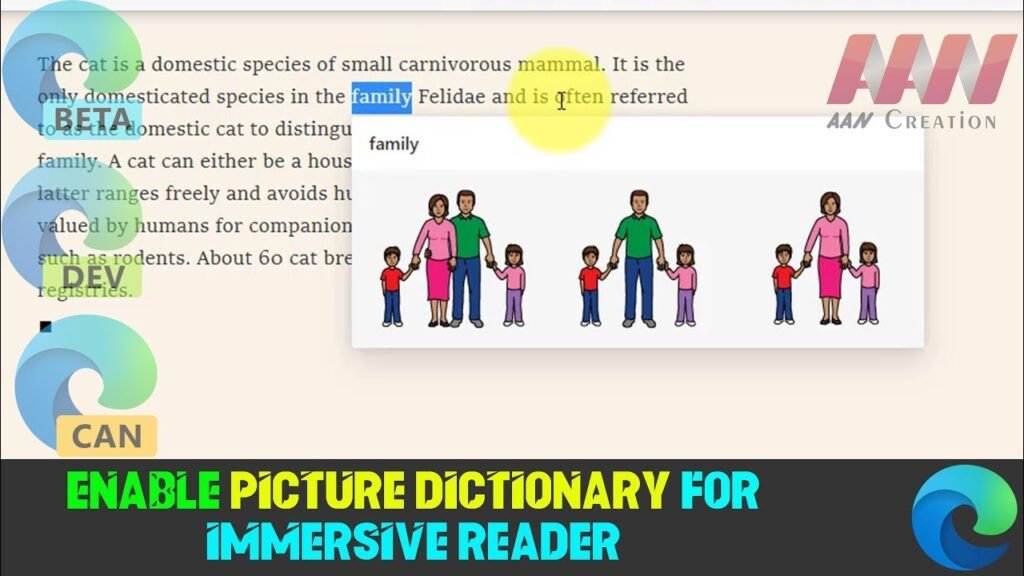

Immersive Reader in Microsoft Edge removes ads and clutter from articles so they’re easier to read. One of its learning tools is Picture Dictionary: click a word and a simple picture appears to show what it means. It’s very helpful for children, people learning a language and readers with dyslexia.
When this feature first appeared it was only in test (Canary) builds of Edge. It’s now part of the normal Immersive Reader, so no flags are needed.
Open Immersive Reader
- Open an article or blog post in Edge.
- Click the Immersive Reader icon (a book with a speaker) in the address bar, or press F9.
If the icon doesn’t appear, the page may not be supported. Select some text, right-click it and choose Open in Immersive Reader.
Turn on Picture Dictionary
- Inside Immersive Reader, click Reading preferences in the toolbar at the top.
- Turn on Picture Dictionary.
- Close the panel and click any word in the text.
- A small card shows a picture for the word, if one is available. Click the speaker icon on the card to hear the word read aloud.
Pictures exist mainly for common, concrete words such as animals, food and everyday objects.
Other helpful Immersive Reader tools
- Read Aloud: Edge reads the page to you and highlights each word.
- Text preferences: change text size, spacing, font and page theme.
- Grammar tools: split words into syllables and highlight nouns, verbs and adjectives.
- Line focus: under Reading preferences, show only one, three or five lines at a time.
- Translate: under Reading preferences, translate the page or individual words.
Exit Immersive Reader
Press F9 again or click the Immersive Reader icon in the address bar to return to the normal page. Your Reading preferences are remembered for next time, so Picture Dictionary stays on whenever you open Immersive Reader again on any article.
Frequently asked questions
Why don’t I see Picture Dictionary in Reading preferences?
Update Edge in Settings > About Microsoft Edge. The available tools can also depend on the page language.
Is Immersive Reader available in other apps?
Yes. Microsoft Word, OneNote and Teams also include Immersive Reader with similar tools.

