
Ransomware locks your files and demands payment to unlock them. Windows 11 and 10 include a free defence in Windows Security called Controlled folder access. It stops untrusted apps from changing files in your important folders, such as Documents and Pictures. It’s turned off by default, so you need to switch it on.
How to turn on ransomware protection
- Open the Start menu, search for Windows Security and open it.
- Click Virus & threat protection.
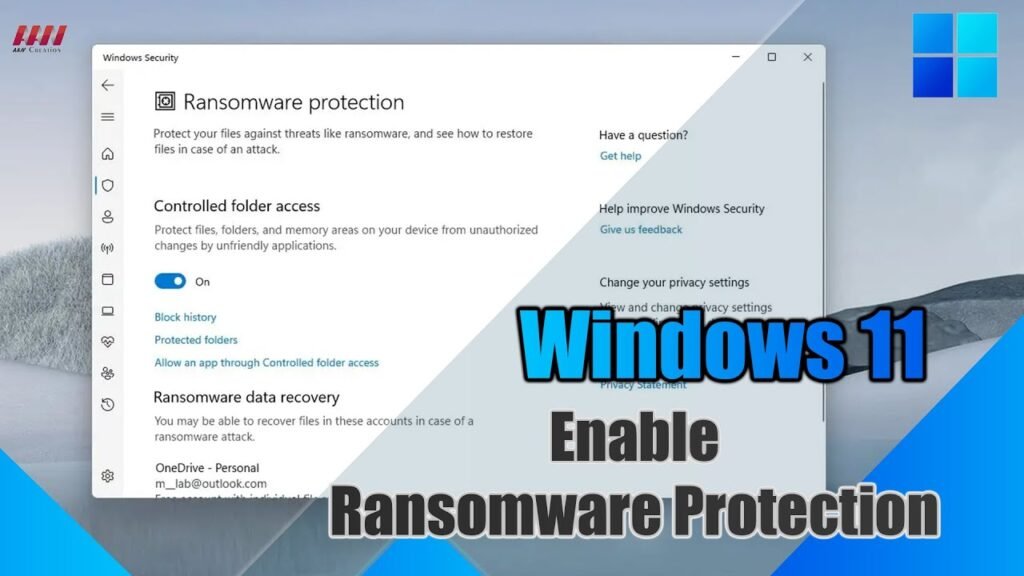
- Scroll down to Ransomware protection and click Manage ransomware protection.
- Turn on Controlled folder access.
- Click Yes if User Account Control asks for permission.
This option only appears when Microsoft Defender Antivirus is your active antivirus. If you use another antivirus, check its own ransomware settings instead.
Add more folders to protect
- On the same page, click Protected folders.
- Click Add a protected folder and choose folders like work projects or a second drive with photos.
Windows protects common folders such as Documents, Pictures, Videos, Music and Desktop automatically.
Allow a trusted app
Sometimes a safe app, like a game or photo editor, gets blocked from saving files. Windows shows a notification when this happens.
- Click Allow an app through Controlled folder access.
- Choose Add an allowed app, then Recently blocked apps or Browse all apps.
- Select the app you trust.
Only allow apps you know and trust.
Set up file recovery with OneDrive
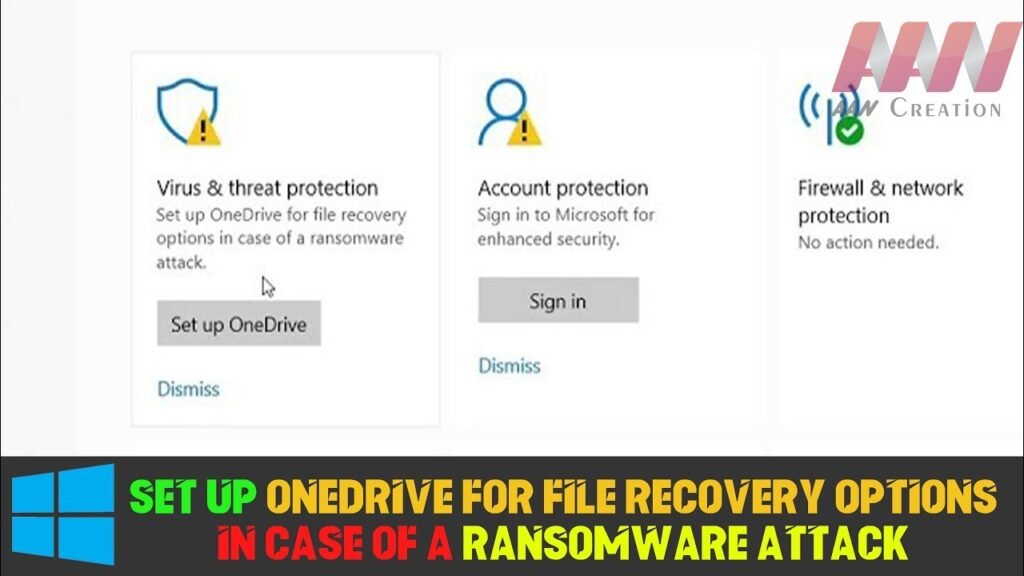
The same page offers Ransomware data recovery through OneDrive. Files backed up to OneDrive can be restored to an earlier version if they’re encrypted by ransomware. Sign in with your Microsoft account and turn on OneDrive backup to use it.
Extra tips
- Keep an offline backup: copy important files to an external drive and unplug it after.
- Update Windows: many attacks use old security holes.
- Be careful with attachments: ransomware often arrives through email attachments and fake downloads.
Frequently asked questions
Will Controlled folder access slow down my PC?
No. It has almost no performance impact. The only downside is the occasional blocked app, which you can allow.
Is this enough protection on its own?
It’s a strong extra layer, but backups are still the most reliable way to recover from ransomware.