
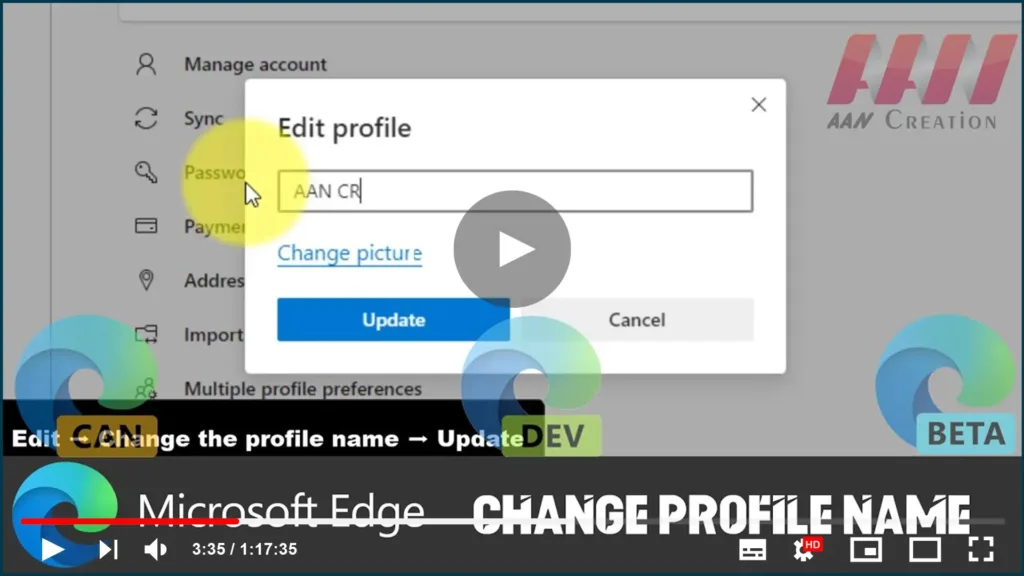

You can change the name of your Edge profile to whatever you want.
Multiple profiles can be used in Microsoft Edge’s Chromium version. A
profile enables you to share the web browser with other users while
keeping your information private. Every profile you create separates all
of your data, such as history, favorites, passwords, extensions, and other
settings.
Multiple profiles can be used in Microsoft Edge’s Chromium version. A
profile enables you to share the web browser with other users while
keeping your information private. Every profile you create separates all
of your data, such as history, favorites, passwords, extensions, and other
settings.
Also, profile support is a useful feature if you want to use multiple
Microsoft accounts and keep your things, such as personal and work,
separate. The only caveat about profiles is that when you add a new one,
it uses a default name, which you can change from the settings page if you
want a more personalized experience.
Microsoft accounts and keep your things, such as personal and work,
separate. The only caveat about profiles is that when you add a new one,
it uses a default name, which you can change from the settings page if you
want a more personalized experience.
In this guide, you’ll learn how to change the name of your Microsoft Edge
profile on Windows 10.
profile on Windows 10.
To change the name of the profile you’re using on the Chromium version
of Edge, use these steps:
01. Open Microsoft Edge.
02. Click the Settings and More (three-dotted) button on the top-right
corner.
03. Select the Settings option.
04. Click on Profiles.
05. Click the Settings (three-dotted) button.
(adsbygoogle = window.adsbygoogle || []).push({});
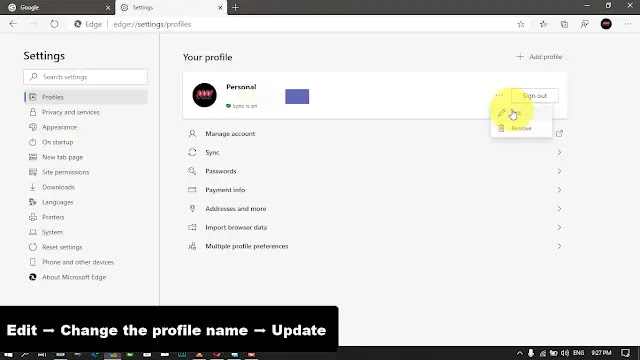
06. Click the Edit button.
07. Change the profile name.

08. Click the Update button.
Once you complete the steps, the new name of the profile will be reflected
across the browser experience.

