
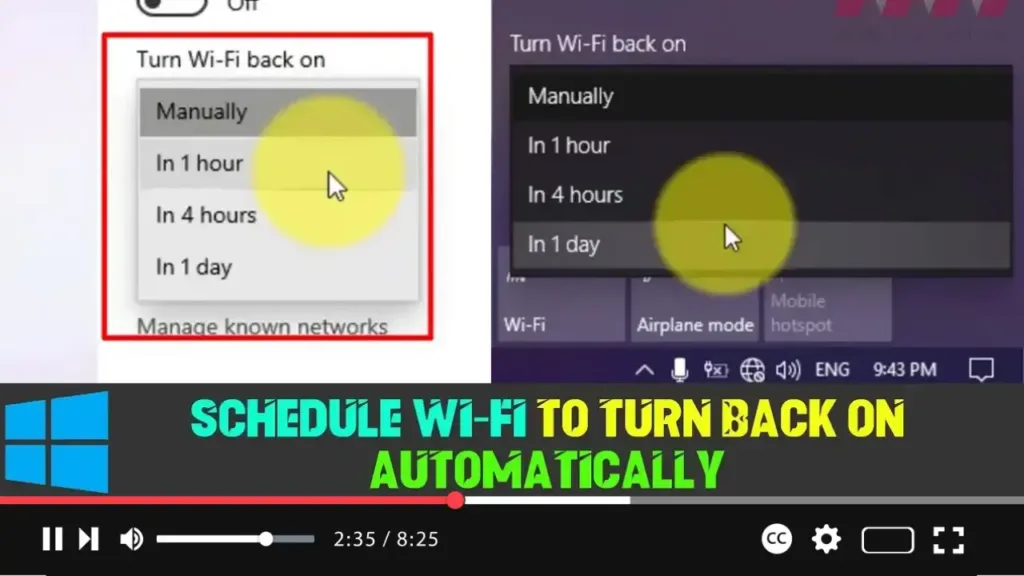

Windows 10 now offers a convenient feature that allows you to manually turn off your Wi-Fi connection while scheduling it to turn back on after a specified period of time. This feature is especially useful for saving battery life or avoiding automatic connections to unwanted networks, without the need to remember to turn Wi-Fi back on later.
If you’re looking to schedule your Wi-Fi to turn on automatically after a certain period, follow the detailed steps below.
Step-by-Step Guide to Scheduling Wi-Fi to Turn Back On:
Step 01: Open the Settings app.
You can do this by pressing Windows + I or by selecting the gear icon from the Start menu.
Step 02: Navigate to Network & Internet.
In the Settings window, find and click on Network & Internet, where you can adjust your Wi-Fi and network settings.
.webp)
Step 03: Select Wi-Fi from the left-hand sidebar.
In the Wi-Fi section, you’ll see the current status of your wireless connection.
Step 04: Turn off the Wi-Fi connection.
Toggle the Wi-Fi switch to turn off your Wi-Fi connection. Once you do this, a new drop-down menu will appear just beneath the toggle.
Step 05: Set the schedule for turning Wi-Fi back on.
Click on the “Turn Wi-Fi back on” drop-down menu. From here, you can choose a time frame for when you want the Wi-Fi to reconnect automatically:
- After 1 hour
- After 4 hours
- After 1 day
The default option is set to Manually, which means Wi-Fi will remain off until you turn it back on manually.
Alternative Method via the Taskbar:
If you want to schedule your Wi-Fi using the Network flyout from the Taskbar, follow these steps:
Step 01: Click the Wi-Fi icon on the taskbar.
This icon is typically located in the bottom-right corner of your screen near the clock.
Step 02: Click the Wi-Fi button to turn off the connection.
Once you click this button, your Wi-Fi will turn off, and a drop-down menu will appear, just like in the Settings app.
.webp)
Step 03: Schedule the Wi-Fi to turn back on.
Use the same “Turn Wi-Fi back on” drop-down menu and select a time frame: 1 hour, 4 hours, or 1 day.
Conclusion:
Scheduling Wi-Fi to turn back on automatically after a specific period is a convenient feature in Windows 10, helping you manage battery life and prevent unnecessary connections. Whether through the Settings app or the Taskbar, you can easily adjust the Wi-Fi to meet your needs, ensuring it reconnects at a time that suits you best.

