
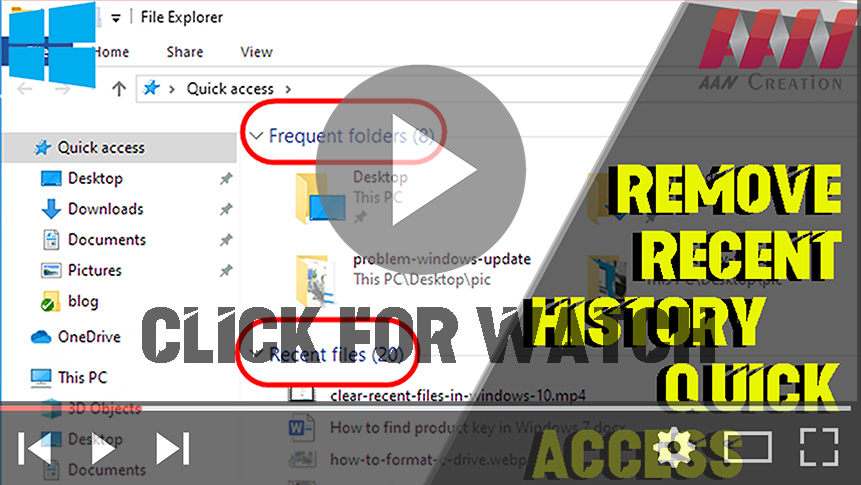

If you are using Windows 10 or have seen the OS on any computer, you might be aware of the new Home aka Quick Access View introduced in Windows 10 File Explorer (previously known as Windows Explorer or My Computer).
This new Quick Access or Home view is the default page of File Explorer in Windows 10 & whenever you open File Explorer using its shortcut icon or Win+E hotkey, this new view is shown in File Explorer. It shows frequently used folders & recently used files list in File Explorer.
Although Microsoft designed this new view for user’s convenience most of the Windows 10 users don’t like this default view. They find it annoying as they have to click on This PC link in the left-side pane to access disk drives each time they open File Explorer. Also sometimes users do not want to show frequently accessed folders or recently opened files in File Explorer due to privacy issues.
In older preview builds of Windows 10, Microsoft did not provide any way to disable/remove this new Quick Access or Home view in File Explorer & users had to use Registry tweaks to get rid of this view such as deleting items keys under
HKEY_LOCAL_MACHINESOFTWAREMicrosoftWindowsCurrentVersionexplorerHomeFolderNameSpaceDelegateFolders
(adsbygoogle = window.adsbygoogle || []).push({});
key in Registry Editor using similar instructions
1. Open-File Explorer, click on the View tab in Ribbon and then click on Options.
2. Now to remove frequent folders and recent files list from Quick Access/Home view, uncheck the following 2 options present under the Privacy section:
The show recently used files in Quick Access
The show frequently used folders in Quick Access
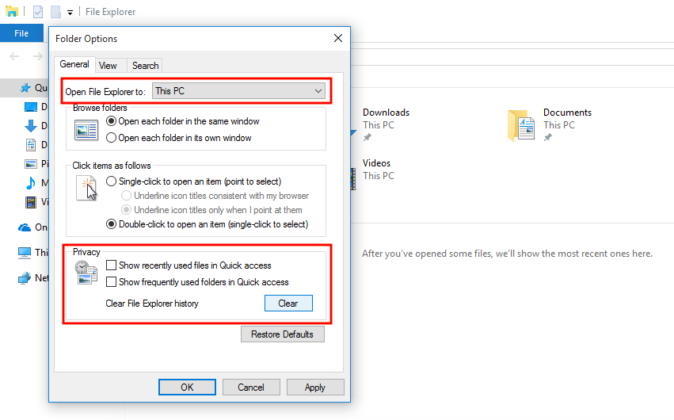
3. If you want to completely get rid of Quick Access/Home view from File Explorer, change the option “Open File Explorer to” from “Quick Access” to “This PC” using the drop-down list. It will set the old This PC view as default in File Explorer & you will always have disk drives page visible whenever you open File Explorer.
4. One more thing! If you also want to remove the unnecessary 6 folders “Desktop, Documents, Downloads, Music, Pictures & Videos” from This PC & extra icons such as OneDrive, Quick Access, etc from Navigation Pane in This PC

