
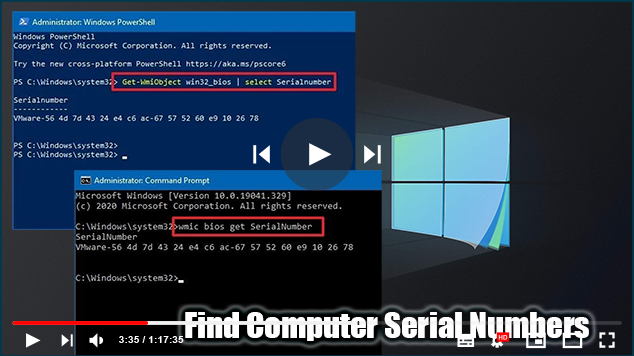

On Windows 10, The ability to check a computer’s serial number can be
useful in a variety of situations. For instance, when you need to make a
list of all the devices connected to your home network or organization or
need to contact technical support to troubleshoot a problem, Check the
warranty information or order a replacement part.
useful in a variety of situations. For instance, when you need to make a
list of all the devices connected to your home network or organization or
need to contact technical support to troubleshoot a problem, Check the
warranty information or order a replacement part.
Usually, The necessary information can be found on the sticker attached to
the back or bottom of your laptop or desktop or checking the Basic
Input/Output System (BIOS) or Unified Extensible Firmware Interface (UEFI)
on your motherboard. Although, if the sticker is not available or you do not
want to go through extra steps to access firmware, you can also use
PowerShell and Command Prompt to retrieve this information quickly on
Windows 10.
the back or bottom of your laptop or desktop or checking the Basic
Input/Output System (BIOS) or Unified Extensible Firmware Interface (UEFI)
on your motherboard. Although, if the sticker is not available or you do not
want to go through extra steps to access firmware, you can also use
PowerShell and Command Prompt to retrieve this information quickly on
Windows 10.
In addition, When you need to retrieve serial information from multiple
devices, you can use commands to automate the process with a script.
In this Windows 10 tutorial, we will walk you through the steps to quickly
find your device serial number using command lines.
* How to Decide PC serial number using PowerShell
* How to Decide PC serial number using Command Prompt
How to Decide PC serial number using PowerShell
Using a PowerShell command, you can retrieve your computer’s serial
number, use these steps:
01. Open Start.
02. Search for PowerShell, right-click the top result, and select the Run
as administrator option.
03. To find out the computer serial number, run the following command and
press Enter:
Get-WmiObject win32_bios | select Serialnumber

04. Confirm the SerialNumber information.
05. (Optional) Type the following command to determine device serial
number and press Enter:
number and press Enter:
Get-CIMInstance win32_bios | format-list SerialNumber
06. Confirm the SerialNumber information.
07. (Optional) Type the following command to export the serial
information to a text file and press Enter:
information to a text file and press Enter:
Get-WmiObject win32_bios | select Serialnumber > PATHTOEXPORT
In the command, make sure to replace “PATHTOEXPORT” with the path
to the text file into which you want to export the serial number
data.
to the text file into which you want to export the serial number
data.
For Ex, this command exports the output to the ComputerSerial.txt
file in the C drive:
file in the C drive:
Get-WmiObject win32_bios | select Serialnumber > C:ComputerSerial.txt
(adsbygoogle = window.adsbygoogle || []).push({});

Once you’ve completed the steps, you’ll be able to determine the
serial number of your desktop or laptop computer.
If you are using the command to export the output, you will find the
file in the folder location you specified. Also, You can open it with
Notepad or any other text editor because you exported it as a text
file.
How to determine PC serial number using Command Prompt
Using a Command Prompt command, check the device serial number,
use these steps:
use these steps:
01. Open Start.
02. Search for PowerShell, right-click the top result, and select
the Run as administrator option.
the Run as administrator option.
03. To find the computer serial number, enter the following
command and press Enter:
command and press Enter:
wmic bios get SerialNumber

04. Confirm the computer serial number.
05. (Optional) To export the serial information to a text
file, enter the following command and press Enter:
file, enter the following command and press Enter:
(adsbygoogle = window.adsbygoogle || []).push({});
wmic bios get SerialNumber > PATHTOEXPORT
In the command, ensure that you replace “PATHTOEXPORT” with
the path to the text file into which you want to export the
serial number data.
the path to the text file into which you want to export the
serial number data.
For Ex, this command exports the output to the
ComputerSerial.txt file in the C drive:
ComputerSerial.txt file in the C drive:
wmic bios get SerialNumber > C:ComputerSerial.txt

After you’ve finished the steps, the command will return the
serial number without needing to access the BIOS or going
behind the device to look for the sticker.
serial number without needing to access the BIOS or going
behind the device to look for the sticker.

