
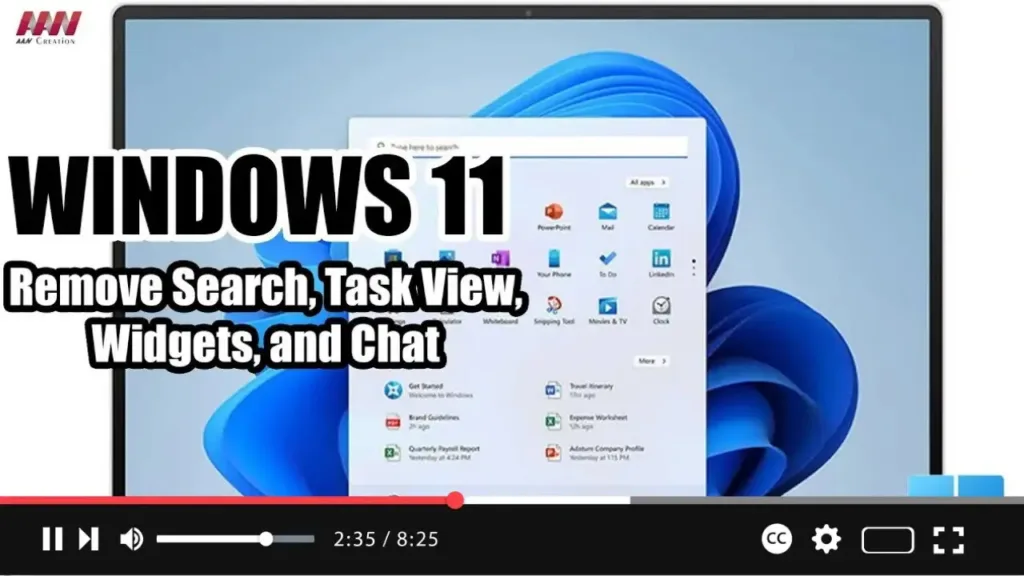
On Windows 11, you will find a new taskbar that includes a center alignment with a bunch of new buttons for faster access to Search, Task View, Widgets, and Chat.
However, since you can access all of these features with shortcuts (Windows key + S, Tab, W, and C), the buttons are just wasting space in the taskbar. If you don’t need any of them, Windows 11 makes it easy to show or hide the buttons that appear on the toolbar.
In this guide, you will learn the steps to hide certain buttons to make more space in the Windows 11 taskbar.
.webp)
Step-by-Step Instructions
Step 01: Open Settings Open Settings on Windows 11.
Step 02: Navigate to Personalization Click on Personalization.
Step 03: Access Taskbar Settings Click the Taskbar page on the right side.
Step 04: Manage Taskbar Items Click on Taskbar items.
Step 05: Hide Buttons Turn off the All toggle switch to hide the buttons.
.webp)
If you want to add any of these buttons again, you can use the same steps outlined above, but this time remember to turn on the toggle switch for the items you want to display in the taskbar.

