
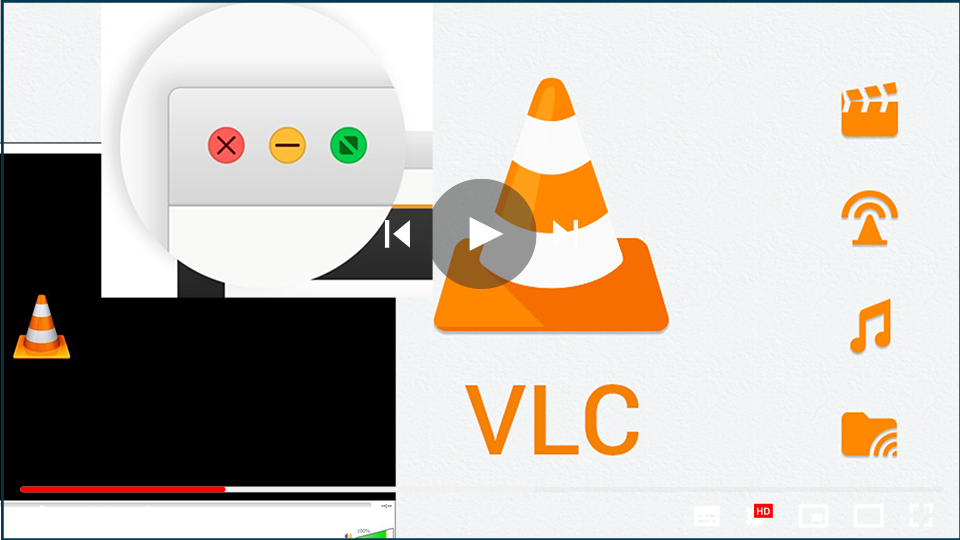

If you’re using the VLC Media Player and the usual minimize, maximize, and close buttons are missing from the top bar, this issue can be fixed quickly. It’s usually caused by the player being in fullscreen interface mode. When in this mode, the top bar with the window controls is hidden, causing the minimize, maximize, and close buttons to disappear.
Here’s how to restore these buttons in just a few steps:
Step 01: Open VLC Media Player
Start by opening your VLC Media Player if it isn’t already open.
Step 02: Click on the View Menu
Once VLC is open, navigate to the top menu bar and click on View.
(adsbygoogle = window.adsbygoogle || []).push({});

Step 03: Uncheck the Fullscreen Interface Option
In the dropdown menu, you’ll see an option for Fullscreen Interface. If it’s checked, that means you’re in fullscreen interface mode, which hides the usual window controls. Uncheck this option to exit the fullscreen interface.
Step 04: Restore Your Minimize, Maximize, and Close Buttons
Once you’ve unchecked the fullscreen interface option, the minimize, maximize, and close buttons will reappear at the top of the VLC window, allowing you to manage the VLC window as usual.
If you want to toggle the fullscreen interface more easily, you can also use the F11 key on your keyboard. This will quickly switch the VLC interface between fullscreen and windowed mode.
Now you can enjoy your videos without worrying about missing buttons!

