
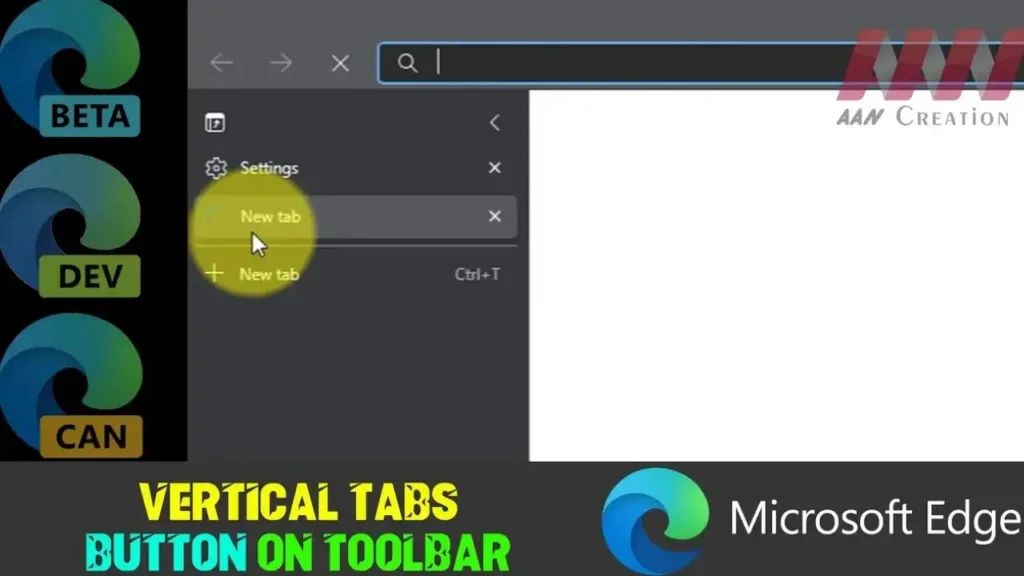

Microsoft Edge provides a vertical tabs feature that allows users to view and manage their tabs on the side of the browser. This can be particularly useful for users who have many tabs open at once. You can add or remove the vertical tabs button on the toolbar to customize your browsing experience. Here’s how to do it:
Introduction:
The vertical tabs feature in Microsoft Edge helps users organize their tabs more efficiently. You can easily switch between horizontal and vertical tab layouts by adding or removing the vertical tabs button on the toolbar. This guide provides step-by-step instructions on how to manage the vertical tabs button in Microsoft Edge.
Steps to Add or Remove the Vertical Tabs Button:
Step 01: Open Microsoft Edge
Launch the Microsoft Edge browser by clicking on its icon in the Start menu or on the taskbar.
Step 02: Access the Settings Menu
Click on the three-dot menu (Ellipsis) located at the top-right corner of the browser window to open the settings menu.
Step 03: Open the Appearance Settings
In the dropdown menu, select “Settings.” Once the Settings page opens, navigate to the “Appearance” section from the left-hand side menu.
.webp)
Step 04: Customize the Toolbar
Scroll down to the “Customize toolbar” section. Here you will find various options to customize the appearance and functionality of your Edge toolbar.
Step 05: Add or Remove the Vertical Tabs Button
To add the vertical tabs button, toggle the switch next to “Show vertical tabs button” to “On.” This will display the vertical tabs button on your toolbar.
To remove the vertical tabs button, toggle the switch next to “Show vertical tabs button” to “Off.” This will hide the vertical tabs button from your toolbar.
Step 06: Verify the Changes
After toggling the switch, the vertical tabs button should appear or disappear from the toolbar immediately. You can now enjoy the customized layout of your browser.
.webp)
Additional Information:
- Using Vertical Tabs: When the vertical tabs button is enabled, clicking on it will switch your tabs to a vertical layout. This layout allows you to see more of your tab titles and favicons, making it easier to navigate through a large number of open tabs.
- Keyboard Shortcuts: You can also use keyboard shortcuts to manage your tabs efficiently. For example,
Ctrl + Shift + ,(comma) can toggle vertical tabs. - Customization Options: In the “Appearance” settings, you can also customize other aspects of your toolbar, such as showing the home button, the favorites bar, and more.
By following these steps, you can easily add or remove the vertical tabs button on the toolbar in Microsoft Edge, allowing you to tailor the browser to your preferred browsing style.

