
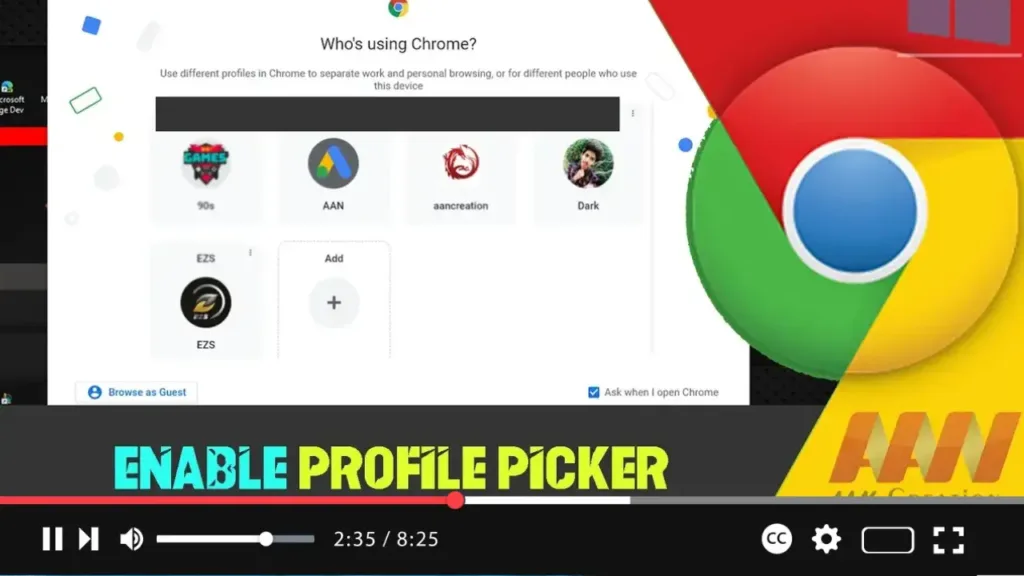

Enabling the Profile Picker in Google Chrome allows users to quickly select and switch between different profiles, enhancing the browsing experience for those who share a computer or use multiple profiles for different purposes. This guide will show you how to enable this feature in Google Chrome.
Introduction
The Profile Picker feature in Google Chrome provides a user-friendly interface for managing multiple profiles. When enabled, a profile selection screen appears each time you open Chrome, making it easy to choose the appropriate profile.
Steps to Enable Profile Picker in Google Chrome
Step 01: Open Google Chrome
Launch Google Chrome on your computer.
Step 02: Access Chrome Flags
To enable the Profile Picker feature, you need to access Chrome’s experimental features (flags).
Type chrome://flags/ in the address bar and press Enter.
.webp)
Step 03: Search for Profile Picker Flag
In the search box at the top of the Flags page, type “profile picker.”
Step 04: Enable Profile Picker Flag
Find the flag named “Enable new profile picker” or “Enable profile picker” (the exact name may vary depending on your Chrome version).
Click the dropdown menu next to the flag and select “Enabled.”
Step 05: Relaunch Google Chrome
After enabling the flag, click the “Relaunch” button that appears at the bottom of the Chrome Flags page to restart the browser and apply the changes.
Steps to Use the Profile Picker
Step 01: Open Google Chrome
After relaunching Chrome, the Profile Picker should now be enabled.
Step 02: Select or Add a Profile
Upon opening Chrome, you will see the Profile Picker screen. From here, you can:
- Select an existing profile by clicking on it.
- Add a new profile by clicking on the “Add” button and following the prompts.
Step 03: Manage Profiles
To manage profiles, click on your profile icon in the top-right corner of the browser window and select “Manage profiles.” From this menu, you can edit, remove, or add profiles as needed.
.webp)
Additional Information
Profile Customization: Each profile can have its own settings, bookmarks, extensions, and theme, allowing for a personalized browsing experience.
Privacy and Security: Using separate profiles helps maintain privacy, as browsing data, cookies, and history are isolated within each profile.
Sync Across Devices: If you sign in with your Google account, profiles can be synced across devices, providing a seamless experience no matter where you access Chrome.
Regular Updates: Keep Google Chrome updated to the latest version to ensure you have access to the newest features and security enhancements.
By following these steps, you can enable and use the Profile Picker in Google Chrome, making it easier to manage multiple profiles and streamline your browsing experience.

