
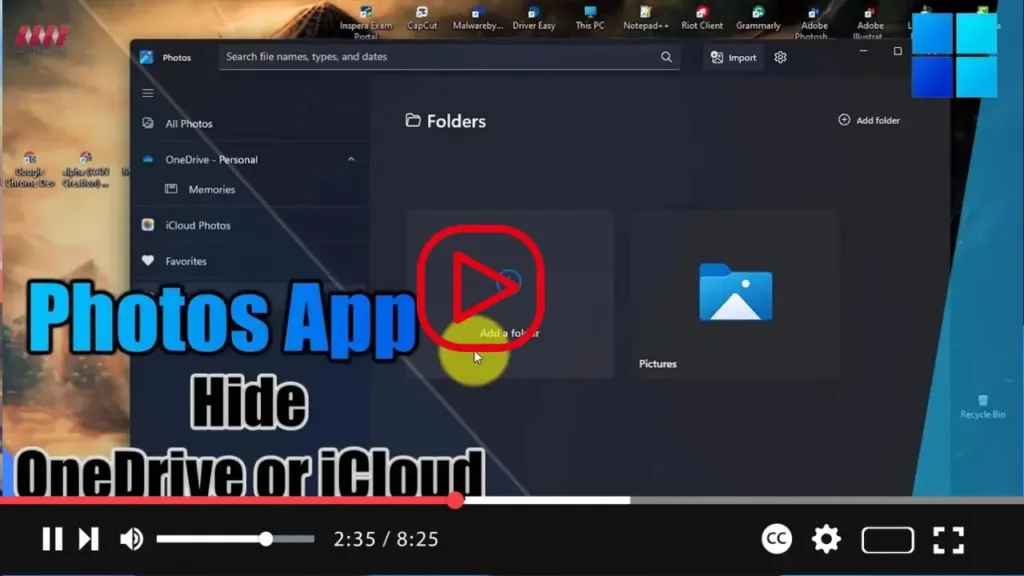

Windows 11 offers seamless integration with cloud storage services like OneDrive and iCloud Photos to access and manage your multimedia files. However, if you prefer not to use these cloud services or wish to declutter your Photos app interface, you can easily hide the OneDrive and iCloud Photos integrations. Here’s how to do it:
.webp)
-
Open the Photos App:
- Launch the Photos app on your Windows 11 computer. You can find it in the Start menu or by searching for “Photos” in the search bar.
-
Access Settings:
- Once the Photos app is open, click on the Settings icon located in the top-right corner of the window. The Settings icon resembles a gear or cogwheel.
-
Navigate to Personalization Settings:
- In the Settings menu, locate and click on the “Personalization” section. This section contains options related to customizing the app’s appearance and behavior.
-
Disable iCloud Photos Integration:
- Under the “Personalization” section, look for the option labeled “Show iCloud Photos.” Toggle off the switch next to it to disable iCloud Photos integration with the Photos app.
-
.webp)
-
Turn Off OneDrive Integration:
- Next, scroll down to the “OneDrive Accounts” section within the Settings menu. Here, you’ll find the toggle switch for “OneDrive.” Toggle off the switch to remove OneDrive integration from the Photos app.
-
Save Changes:
- After disabling both iCloud Photos and OneDrive integration, close the Settings menu to save your changes.
-
.webp)
By following these steps, you can effectively remove the OneDrive and iCloud Photos integrations from the Photos app in Windows 11. This action helps streamline your photo and video viewing experience, especially if you prefer to manage your multimedia files locally or use alternative cloud storage solutions.

