


As you may already know, Microsoft is now using Chromium and its Blink engine as the core technology for its Edge browser. With this change, Edge has got a new option to force enable dark mode on any web page.
In this guide, you’ll learn the steps to Enable Dark Mode for All Sites in the Chromium Version of Microsoft Edge.
Use these steps to Enable Dark Mode
01. Open Microsoft Edge.
02. Type the following in the address bar and hit the Enter key:
edge//flags/#enable-force-dark
03. Select the option Enable from the drop-down list next to the ‘Force Dark Mode for Web Contents’ line.
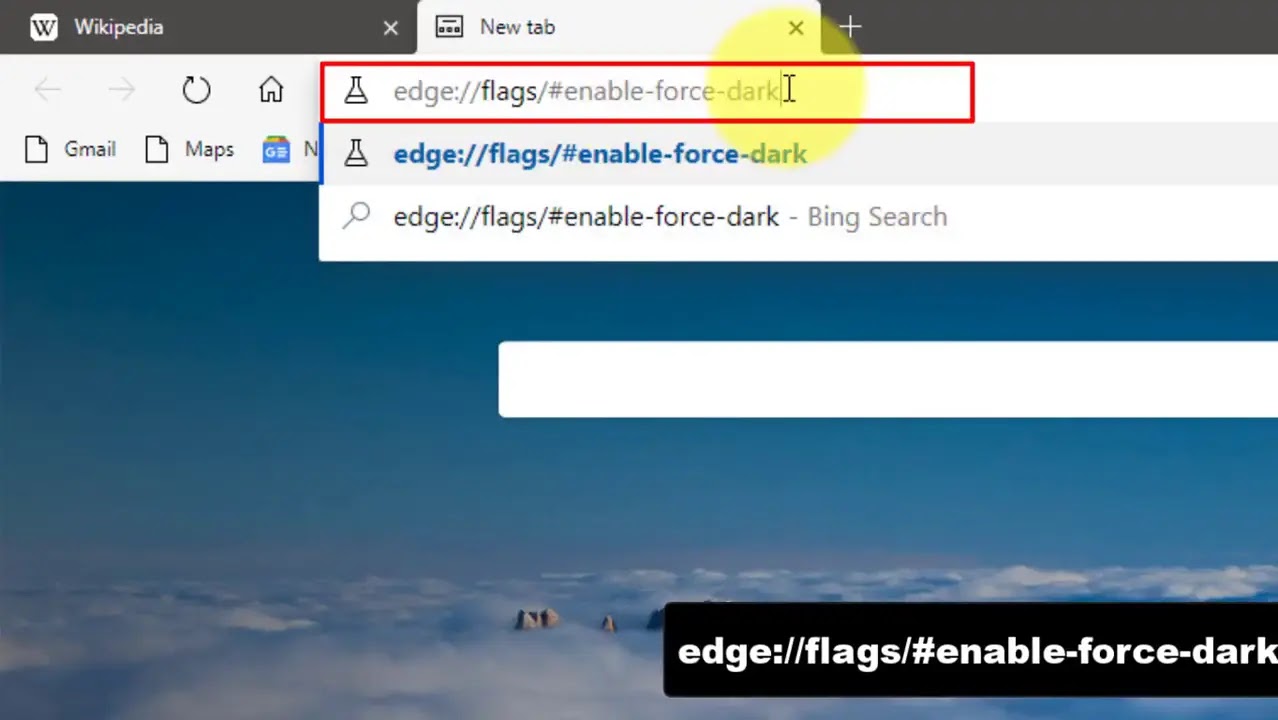
04. Restart the browser once prompted
You are done. Edge will render all websites using the dark style. Here is how Wikipedia looks in Dark Mode:
The flag supports a number of other options You can play with them and see what works best for you.

Simple HSL-based inversion
Simple CIELAB-based inversion
Selective image inversion
Selective inversion of non-image elements
Selective inversion of everything
Keep in mind that overriding a web page’s default CSS may render it unreadable. The forced dark mode is an experimental feature that may or may not make it to the production branch.

