
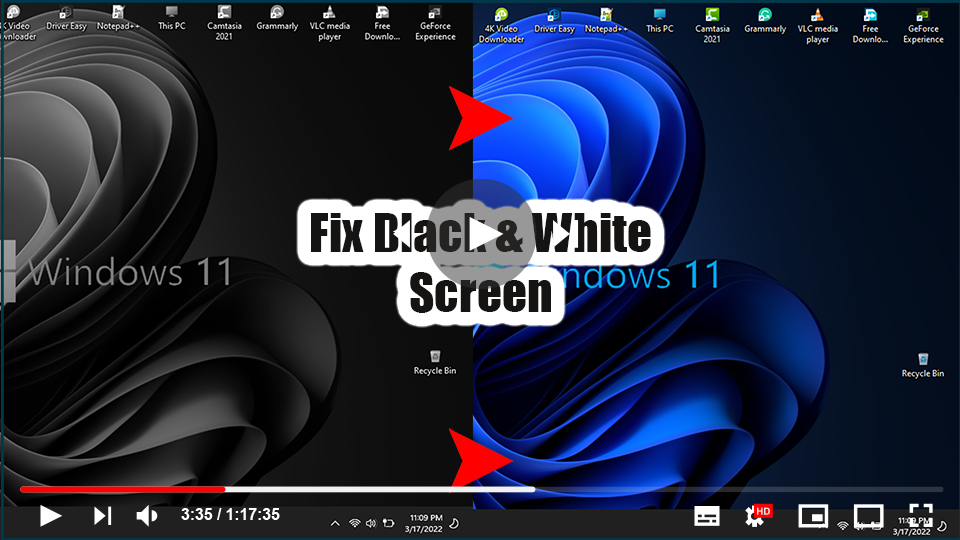

This is a recent question posted on a popular online forum by a Windows
10 user who is experiencing a black and white screen on his computer.
Ideally, A faulty display or any other software issue can also cause the
Windows black and white error. Therefore, You would have to first diagnose
the problem and then take the necessary steps to fix the Windows black and
white mode. In this guide, I’ll show you how to fix Windows 10 black and
white errors in a variety of ways.
10 user who is experiencing a black and white screen on his computer.
Ideally, A faulty display or any other software issue can also cause the
Windows black and white error. Therefore, You would have to first diagnose
the problem and then take the necessary steps to fix the Windows black and
white mode. In this guide, I’ll show you how to fix Windows 10 black and
white errors in a variety of ways.
* What Causes a Black and White Screen in Windows 10?
* How to Fix the “Windows 10 Black and White Screen” Error?
What Causes a Black and White Screen in Windows 10?
If you have a black-and-white Windows 10 screen, then you need to start
by understanding the issue. In this, The colorful display fades to
grayscale (black and white) and even a system restart does not fix it.
Mostly, The following are the primary causes of the Windows 10 black and
white screen issue.
by understanding the issue. In this, The colorful display fades to
grayscale (black and white) and even a system restart does not fix it.
Mostly, The following are the primary causes of the Windows 10 black and
white screen issue.
* What Causes a Black and White Screen in Windows 10?
* How to Fix the “Windows 10 Black and White Screen” Error?
What Causes a Black and White Screen in Windows 10?
If you have a black-and-white Windows 10 screen, then you need to
start by understanding the issue. In this, The colorful display
fades to grayscale (black and white) and even a system restart does
not fix it. Mostly, The following are the primary causes of the
Windows 10 black and white screen issue.
start by understanding the issue. In this, The colorful display
fades to grayscale (black and white) and even a system restart does
not fix it. Mostly, The following are the primary causes of the
Windows 10 black and white screen issue.
(adsbygoogle = window.adsbygoogle || []).push({});
* Your Windows 10 system’s graphic card may be damaged, loose, or
corrupted.
corrupted.
* It can also happen as a result of a faulty display or a loose
connection.
connection.
* A corrupted or out-of-date display driver can also contribute to
the issue.
the issue.
* You could have changed your system’s display settings, leading to
the grayscale screen.
the grayscale screen.
* Any other third-party application would have changed your
computer’s display settings as well.
computer’s display settings as well.
* You may have unintentionally enabled the grayscale display
settings by pressing the Windows + Ctrl + C keyboard shortcuts.
settings by pressing the Windows + Ctrl + C keyboard shortcuts.
* It can also occur as a result of the presence of malware, faulty
firmware, or any other software-related issue.
firmware, or any other software-related issue.
How to Fix the “Windows 10 Black and White Screen” Error?
Now when you have understood the basics of the Windows 10 black
and white screen problem, let’s proceed and discuss some of its
possible fixes.
and white screen problem, let’s proceed and discuss some of its
possible fixes.
Method 01: Disable the Windows 10 Color Filters
If you accidentally enabled the Windows 10 black and white
mode or made a change to its display settings, then this
method can fix the issue. In this, We’ll go to Windows 10
settings and simply turn off the color filter option.
mode or made a change to its display settings, then this
method can fix the issue. In this, We’ll go to Windows 10
settings and simply turn off the color filter option.
01. To enter Windows 10 Settings, simply go to the Start menu
and click on the gear icon. From here, Enter the “Ease of
Access” feature from the list of available options.
and click on the gear icon. From here, Enter the “Ease of
Access” feature from the list of available options.

02. Now, from the left, To get dedicated options on the
right, click the “Color and high contrast” feature.
right, click the “Color and high contrast” feature.
03. Here, you can see various filters (including grayscale)
that could have been applied to the system. Simply disable the
color filter option from here and restart your system to
resolve the issue.
that could have been applied to the system. Simply disable the
color filter option from here and restart your system to
resolve the issue.

Method 02: Connect an External Monitor to Test the
Display
Display
In some cases, A hardware problem could be causing the Windows
black and white screen. If your computer has gone black and
white and you are certain it is not due to a firmware problem,
then check its monitor. Simply unplug the screen from your
system and connect it to another computer that has a working
display.
black and white screen. If your computer has gone black and
white and you are certain it is not due to a firmware problem,
then check its monitor. Simply unplug the screen from your
system and connect it to another computer that has a working
display.
If it works properly on another screen, then it means there is
a problem with your system’s display. On the other hand, if
your computer screen is still black and white, Then there’s a
problem with its drivers or firmware.
a problem with your system’s display. On the other hand, if
your computer screen is still black and white, Then there’s a
problem with its drivers or firmware.
Method 03: Update your Graphics Driver
As stated above, A faulty or outdated driver can cause
the Windows screen to go black and white. In this case, To
update the graphics driver installed on your system, go to
the Device Manager application. To resolve the black and
white screen issue in Windows 10 caused by faulty drivers,
follow these steps:
the Windows screen to go black and white. In this case, To
update the graphics driver installed on your system, go to
the Device Manager application. To resolve the black and
white screen issue in Windows 10 caused by faulty drivers,
follow these steps:
01. Go to Control Panel ➡️ Device Manager to get a list
of all the drivers installed on your computer.
Alternatively, you can open the Run prompt and type
“devmgmt.msc” into it to launch it.
of all the drivers installed on your computer.
Alternatively, you can open the Run prompt and type
“devmgmt.msc” into it to launch it.

02. From the provided list, just select and expand the
Display Adapters feature to view the installed drivers.
Display Adapters feature to view the installed drivers.
03. Simply select the driver from here, right-click, and
choose to upgrade the driver software. This will launch a
dedicated wizard that will guide you through the process
of upgrading the graphics driver software.
choose to upgrade the driver software. This will launch a
dedicated wizard that will guide you through the process
of upgrading the graphics driver software.

(adsbygoogle = window.adsbygoogle || []).push({});
Besides that, You can also disable the driver from here
and then re-enable it after some time has passed. This
will reset the display drivers, which will help to resolve
the Windows 10 display black and white issue.
and then re-enable it after some time has passed. This
will reset the display drivers, which will help to resolve
the Windows 10 display black and white issue.
Method 04: Perform a Hard Reset on your Computer
If your computer’s display is still black and white, you
should perform a hard reset as your last resort. A hard
reset would ideally return your computer to its factory
settings, and you could even clean the drives in the
process. If a faulty app or bug is to blame for the
Windows 10 black and white error, then this would be a
perfect solution for it.
should perform a hard reset as your last resort. A hard
reset would ideally return your computer to its factory
settings, and you could even clean the drives in the
process. If a faulty app or bug is to blame for the
Windows 10 black and white error, then this would be a
perfect solution for it.
01. Navigate to the Update & Security section of
your computer’s Settings menu from the Start menu. ➡️
Recovery feature. Choose the “Get Started” option from
the “Reset this PC” section.
your computer’s Settings menu from the Start menu. ➡️
Recovery feature. Choose the “Get Started” option from
the “Reset this PC” section.

02. This will launch a dedicated wizard that will guide
you through the process of resetting your computer. To
start, you can choose whether you want to keep your
files or delete them all.
you through the process of resetting your computer. To
start, you can choose whether you want to keep your
files or delete them all.

03. Furthermore, If you want to get rid of everything,
you can also clean the drives. Wait a few moments as
your Windows 10 PC will be restarted with factory
settings.
you can also clean the drives. Wait a few moments as
your Windows 10 PC will be restarted with factory
settings.

