
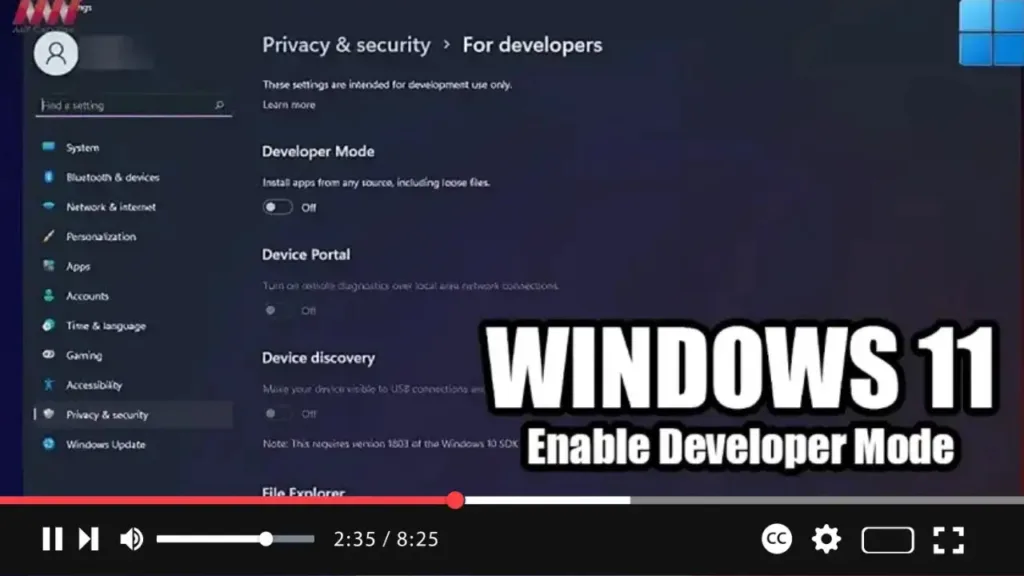

Want to enable Developer Mode on your Windows 11 system? With Developer Mode, you can sideload apps from any source, allowing for greater flexibility in app installation. Here’s a simple guide to help you enable and disable Developer Mode:
Step 01: Open Settings: Start by opening the Settings app on your Windows 11 system.
Step 02: Access Privacy & Security: Within Settings, navigate to the “Privacy & security” section.
Step 03: Navigate to For Developers: On the right side of the screen, you’ll find various options. Select the “For developers” page.
Step 04: Enable Developer Mode: Under the “For developers” section, you’ll see a toggle switch for Developer Mode. Turn on the toggle switch to enable Developer Mode.

Step 05: Confirmation: If prompted, confirm your action by clicking the “Yes” button.
By following these steps, you’ll successfully enable Developer Mode on your Windows 11 system. This mode lifts the original system restrictions, allowing you to install apps from sources other than the Microsoft Store. It’s a useful feature for developers and advanced users who need to test their code or install specific apps.
Remember, with great power comes great responsibility. Ensure that you’re installing apps from trusted sources to maintain the security of your system.

