

web for research or virtually anything you want. Here’s how to give it a try
in the latest version of the browser.
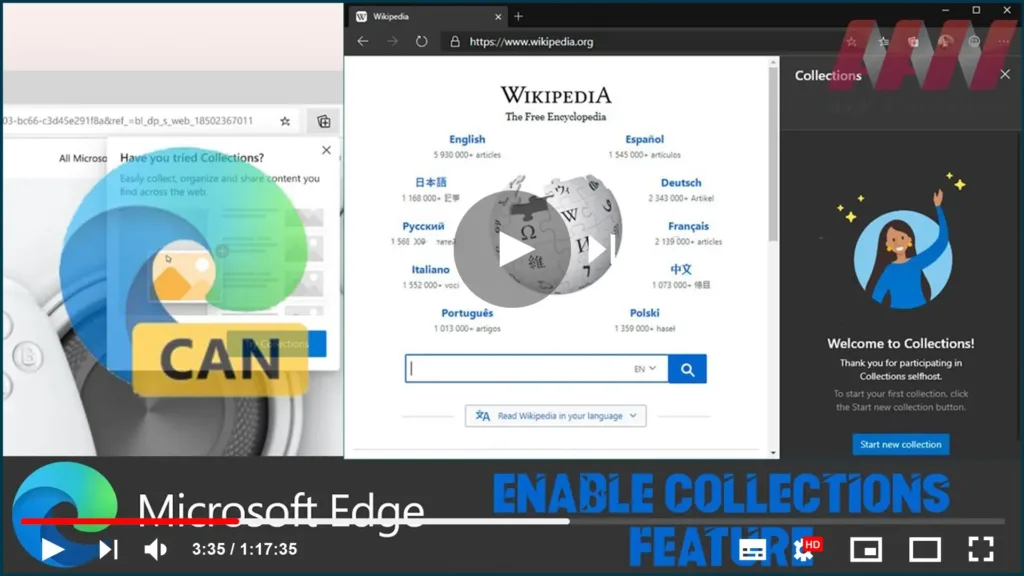
On Microsoft Edge (Chromium), Collection is a new feature designed to help
you to easily collect text, images, videos, and other content into a note
page.
When using Collections, a new flyout will appear from the right side, where
you can drag and drop content from the web. It’ll format the content
correctly, and it’ll even add a footnote with link references to the sources
that you used.
(adsbygoogle = window.adsbygoogle || []).push({});
Microsoft is targeting Collections as a general-purpose tool that you can
use for anything. If you shop online, the feature will help you collect and
compare products. If you’re a teacher or student, Collections can help you
organize your web research and create your lesson plans. Or if you’re an
event or trip organizer, it’ll help to group all the info you need as well
as ideas to plan your event or trip.
Collections for Chromium Edge are still under development, but you can
enable it manually to give it a try in the latest Canary version of the
browser.
In this guide, you’ll learn the steps to enable and start using Collections
in Microsoft Edge for Windows 10.
Use these steps to enable Microsoft Edge Collections:
01. Open Microsoft Edge (Canary).
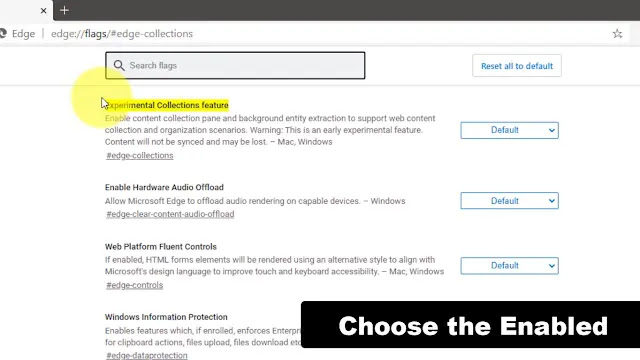
02. Type the following path in the address bar:
edge://flags#edge-collections
03. Use the drop-down menu on the right and select the Enabled option.
04. Click the Relaunch Now button.
Once you complete the steps, Collections will enable next to the address
bar, and it’ll be ready to start collection links, images, and more at your
fingertips.

