
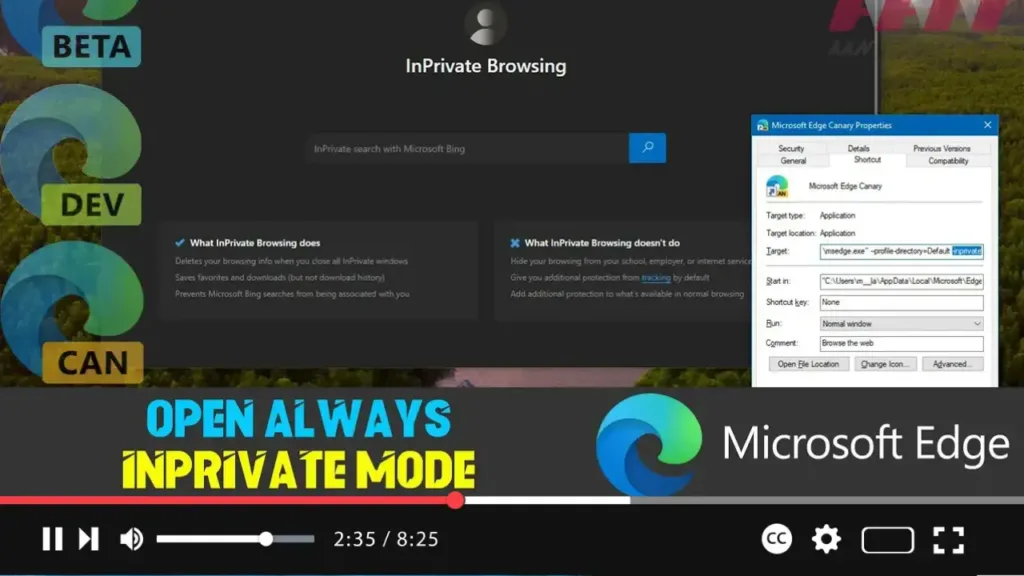

To enhance your online privacy, you can set Microsoft Edge to always start in InPrivate mode. This feature prevents Edge from saving your browsing history, cookies, site data, passwords, addresses, and form data during a session. When you close an InPrivate session, Edge deletes all your browsing information from that session, reducing the amount of data websites can use to track your activities. This is especially useful on shared devices.
Introduction
Starting a new InPrivate session is straightforward, but setting Microsoft Edge to always start in this mode can save you time and ensure privacy. Follow the steps below to configure Microsoft Edge to always open in InPrivate mode.
Steps to Configure Microsoft Edge to Start in InPrivate Mode
Step 01: Right-click the Microsoft Edge Icon
Find the Microsoft Edge icon on your desktop or taskbar and right-click it.
Step 02: Access Properties
In the context menu that appears, right-click the Microsoft Edge item again and select “Properties.”
.webp)
Step 03: Modify the Target Field
In the “Properties” window, locate the “Target” field. Add the -inprivate option at the end of the line. The Target field should look like this:
"Applicationmsedge.exe" --profile-directory=Default -inprivate
Step 04: Apply the Changes
Click the “Apply” button to save the changes.
Step 05: Confirm the Changes
Click the “OK” button to close the Properties window.
.webp)
Conclusion
After completing these steps, every time you launch Microsoft Edge using the modified shortcut, it will open a new InPrivate session by default. This ensures that your browsing history, cookies, and site data are not saved, maintaining your privacy.

