
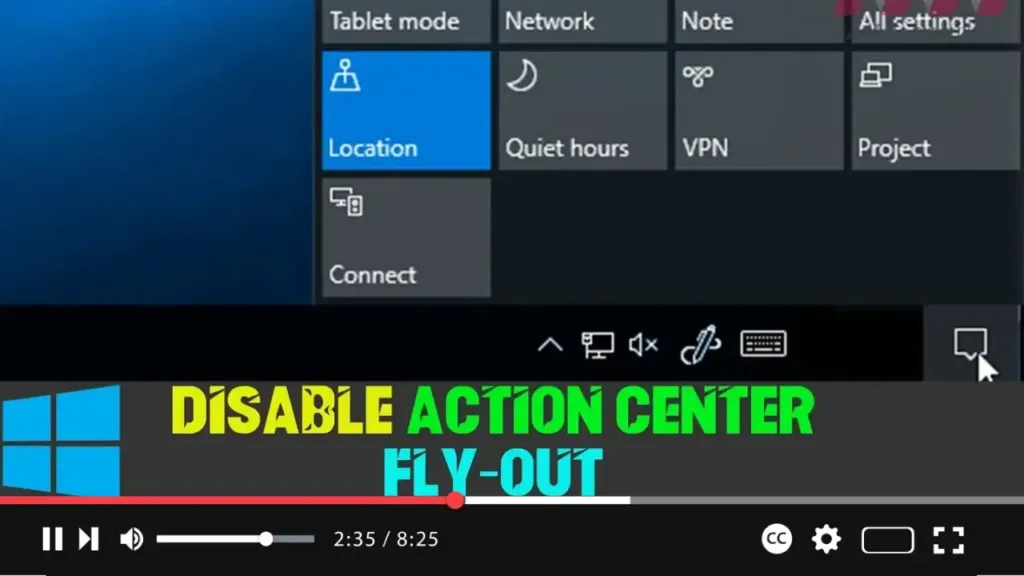

The Action Center in Windows 10 is a central hub for system and app notifications, allowing you to access alerts quickly and manage settings like Wi-Fi, Bluetooth, and Night Light. While this is useful for many, some users may find it distracting or unnecessary. If you want to remove or disable the Action Center, it can be done easily through the Settings app.
Follow the steps below to disable the Action Center fly-out and control notifications:
Steps to Disable Action Center on Windows 10
Step 01: Open Settings
- Press Windows Key + I to open the Settings window.
Step 02: Go to Personalization
- Click on Personalization from the list of options.
Step 03: Access Taskbar Settings
- In the left-hand sidebar, click on Taskbar.
Step 04: Turn System Icons On or Off
- Scroll down to the Notification Area section and click on Turn system icons on or off.
.webp)
Step 05: Disable Action Center
- Find Action Center in the list and toggle it to Off.
After completing these steps, the Action Center icon will no longer appear in your taskbar, and the fly-out will be disabled.
Disabling Toast Notifications
Even though the Action Center is turned off, you may still receive toast notifications (those small pop-up alerts that appear in the lower-right corner). To disable them, follow these additional steps:
.webp)
Step 01: Go to Notifications & Actions
- From the Settings window, click on System, and then select Notifications & actions from the sidebar.
Step 02: Manage Notification Preferences
- In the Notifications section, you’ll see a list of notification types.
- Uncheck the notifications you want to disable, or turn off Get notifications from apps and other senders to disable all notifications completely.
Quick Recap
- Disabling the Action Center removes the icon from your taskbar and prevents quick access to notifications.
- Turning off toast notifications ensures that no pop-up alerts appear on your screen, providing a distraction-free experience.
.webp)
Why Disable Action Center?
- Better Focus: Disabling Action Center can help reduce distractions by cutting off constant alerts and system messages.
- Cleaner Interface: If you prefer a minimalist desktop environment, removing the Action Center simplifies your taskbar.
- Improved Workflow: For users who don’t rely on quick actions or frequent notifications, turning off Action Center can streamline their workflow.
Disabling the Action Center fly-out is a great way to create a cleaner and less cluttered user experience on your Windows 10 PC. Even with the Action Center turned off, you’ll still be able to access essential settings through other means, such as the Settings app or Control Panel.

