

(adsbygoogle = window.adsbygoogle || []).push({});
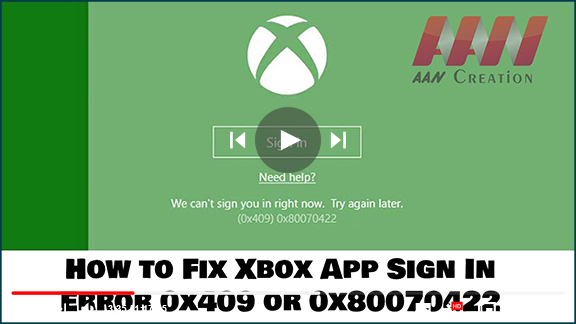
Error code (0x409) 0x80070002 indicates that there is an error with the
built-in apps, due to which you can’t sign into the Xbox app. You will also
get an error message saying We are unable to sign you in at the moment, and
there is also the possibility of having this exact same issue with error code
0x406.
You will receive this issue when you try to sign in to the Xbox app on Windows
10. You won’t be able to sign in, & the sign-in window will most likely
disappear after a second or two. This issue appeared for quite a few users,
and it is actually a tricky one because plenty of people really needs their
Xbox app on Windows 10 to work. This led to a lot of frustration and
irritation with Microsoft’s users.
If you encounter Xbox App sign-in errors such as 0x409 or 0x80070422 on Windows 10, it often indicates issues with Xbox-related services or configuration settings. Follow these steps to resolve the error:
Method 1: Restart Your Computer
A simple restart can sometimes fix the issue by resetting system services and clearing temporary bugs.
Method 2: Enable Xbox Services
Step 01: Open System Configuration (Msconfig)
- Search for System Configuration or press Windows + R, then type msconfig and hit Enter.
Step 02: Enable All Xbox Services
- In the System Configuration window, go to the Services tab.
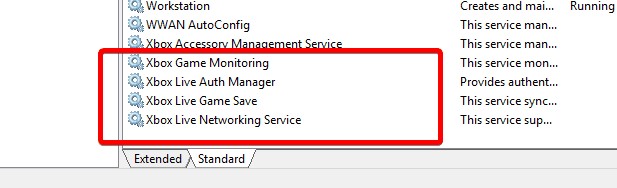
- Look for all services related to Xbox (e.g., Xbox Live Auth Manager, Xbox Game Monitoring, etc.).
- Ensure these services are enabled by checking the corresponding boxes.
- Click Apply, then OK to confirm the changes.
(adsbygoogle = window.adsbygoogle || []).push({});
Step 03: Open Task Manager
- Press Ctrl + Shift + Esc to open Task Manager.
Step 04: Modify Xbox Services
- In Task Manager, click the Services tab, then at the bottom, click Open Services.
- Scroll to find Xbox-related services, right-click each one, and select Properties.
- Change the Startup type to Automatic or Manual.
- Restart your PC to apply these changes.
Additional Fixes:
Check Windows Update:
- Ensure your system is updated to the latest version, as missing updates may cause sign-in issues.
Reset the Xbox App:
- Go to Settings ➡ Apps ➡ Xbox App ➡ Advanced options ➡ Reset. This will reinstall the app without removing your data.
By following these steps, you should be able to fix Xbox App sign-in errors on Windows 10.
Keywords: Xbox app error, 0x409, 0x80070422, sign-in error, fix Xbox apphod 1: Restart your computer

