
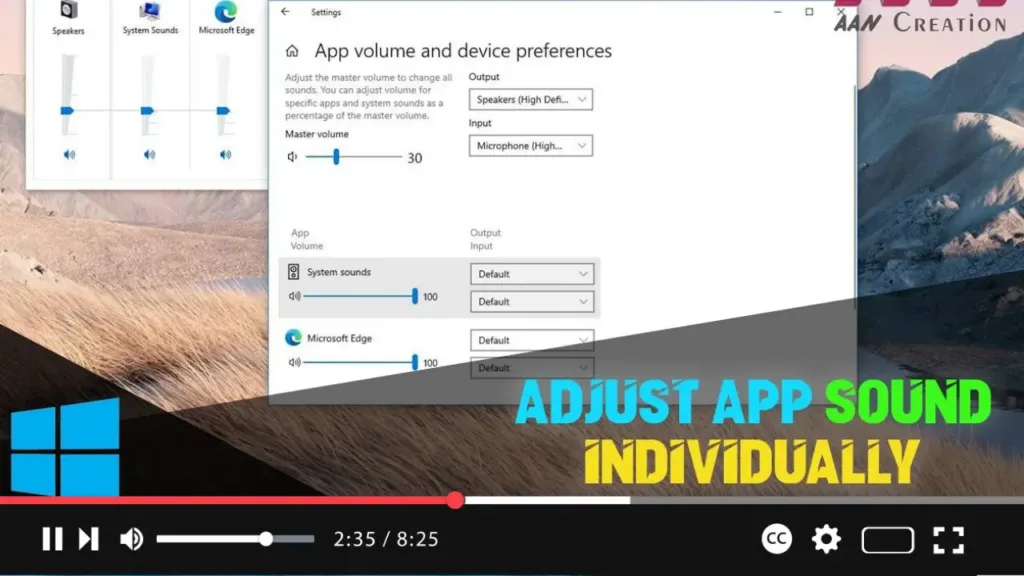

Windows 10 allows you to adjust the sound volume for individual applications, providing you with finer control over your audio experience. This can be especially useful when you want to lower the volume of background apps while keeping others at a higher level.
Introduction
Adjusting app sound individually on Windows 10 can enhance your user experience by allowing you to manage the audio output of different applications independently. This feature is particularly useful for multitasking, gaming, and media consumption.
Steps to Adjust App Sound Individually on Windows 10
Step 01: Open Sound Settings
Press Windows key + I to open the Settings app. Go to “System” and then click on “Sound.”
Step 02: Access App Volume and Device Preferences
In the Sound settings window, scroll down and click on “App volume and device preferences” under the “Advanced sound options” section.
.webp)
Step 03: Adjust Individual App Volumes
You will see a list of all running applications with volume sliders next to them. Adjust the volume slider for each app to set the desired sound level.
Step 04: Set Output and Input Devices for Each App
If needed, you can also set different output and input devices for each app by selecting the appropriate device from the drop-down menus next to each application.
Additional Information
.webp)
Persistent Settings: The volume settings you configure for each app will persist as long as the app remains open. Once you close and reopen an app, you may need to readjust the volume settings.
System Volume: The individual app volume settings are relative to the system volume. Ensure that the system volume is set to an appropriate level before adjusting individual app volumes.
Third-Party Applications: Some third-party audio management tools offer more advanced features for controlling app sound individually, such as saving specific profiles and applying audio effects.
By following these steps, you can easily adjust the sound for individual applications on Windows 10, allowing you to tailor your audio experience to your preferences.

