.webp)
If you use VirtualBox to create and run virtual machines on Windows 10, you may encounter an “E FAIL (0x80004005)” error code at some point, preventing the virtual machine from starting.
The failure usually occurs after upgrading to a new version (build) of Windows 10 or after making changes to the Microsoft Hyper-V feature.
Whatever the cause, if you encounter the error 0x80004005, you can quickly resolve the problem by disabling the feature in Windows 10.
In this guide, you will learn how to fix the error that prevents a virtual machine from starting on VirtualBox.
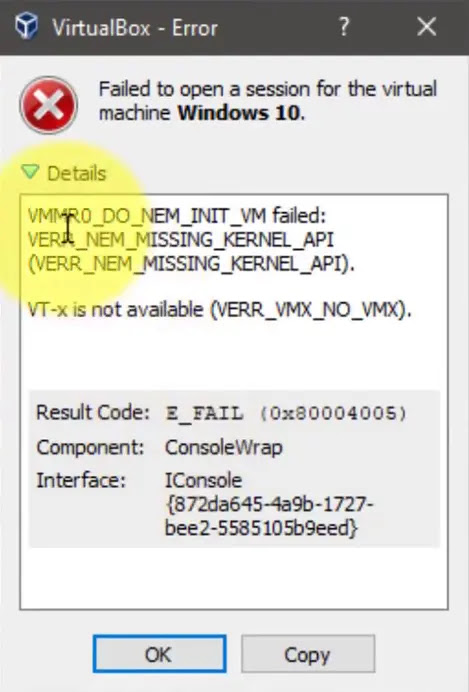
VMMR0_DO_NEM_INIT_VM failed:
VERR_NEM_MISSING_KERNEL_API
(VERR_NEM_MISSING_KERNEL_API).
VERR_NEM_MISSING_KERNEL_API
(VERR_NEM_MISSING_KERNEL_API).
VT-x is not available (VERR_VMX_NO_VMX).
Result Code: E_FAIL (0xc80004005)
Component: ConsoleWrap
Interface: IConsole
{872da645-4a9b-1727-bee2-5585125b9eed}
01. Open Start.
02. Search for Command Prompt, then right-click the top result and choose Run as administrator.
03. Type the following command and press Enter:
bcdedit /set hypervisorlaunchtype off

Once you complete the steps, the command will disable Hyper-V, and VirtualBox should now be able to start a virtual machine normally without an error.