
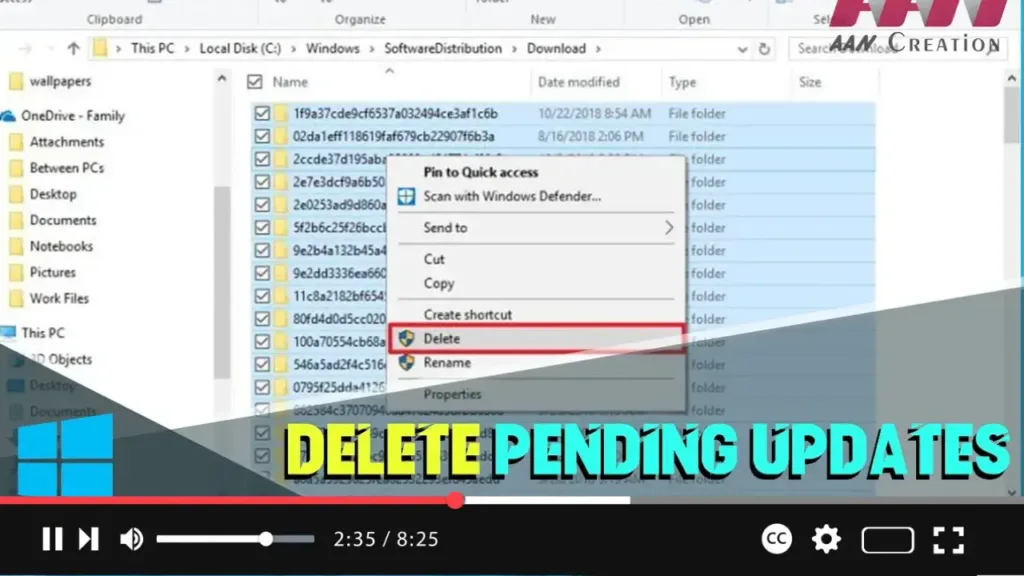

Sometimes, Windows updates can get stuck or fail to install properly, resulting in pending updates that need to be deleted. This guide will walk you through the steps to delete pending updates on Windows 10.
Introduction
Deleting pending updates can help resolve issues with Windows Update, such as failed installations or repeated attempts to install the same update. This process involves stopping the Windows Update service, deleting the update files, and restarting the service.
.webp)
Steps to Delete Pending Updates on Windows 10
Step 01: Stop the Windows Update Service
To delete pending updates, you first need to stop the Windows Update service.
- Press
Windows key + Rto open the Run dialog box. - Type
services.mscand press Enter to open the Services window. - In the Services window, scroll down and find “Windows Update.”
- Right-click on “Windows Update” and select “Stop.”
Step 02: Delete the Update Files
Next, you need to delete the files associated with the pending updates.
- Press
Windows key + Ragain to open the Run dialog box. - Type
%windir%SoftwareDistributionDownloadand press Enter to open the Download folder where Windows update files are stored. - Select all files in the Download folder by pressing
Ctrl + A. - Right-click the selected files and choose “Delete” to remove them.
.webp)
Step 03: Restart the Windows Update Service
After deleting the update files, restart the Windows Update service to resume normal operation.
- Go back to the Services window.
- Right-click on “Windows Update” and select “Start.”
Step 04: Check for Updates
Finally, check for updates to ensure everything is working correctly.
- Open the Settings app by pressing
Windows key + I. - Go to “Update & Security” and click on “Windows Update.”
- Click on “Check for updates” to see if the issue is resolved and if new updates are available.
Additional Information
Clearing Update Cache: Deleting the update files from the SoftwareDistribution folder clears the update cache, which can resolve many update-related issues.
.webp)
Potential Re-download: After deleting pending updates, Windows will re-download the necessary updates the next time you check for updates. Ensure you have a stable internet connection.
Advanced Troubleshooting: If you continue to experience issues with Windows Update, you can use the Windows Update Troubleshooter. Go to Settings > Update & Security > Troubleshoot > Additional troubleshooters > Windows Update and run the troubleshooter.
By following these steps, you can effectively delete pending updates on Windows 10, helping to resolve update issues and ensuring your system stays up to date.

