
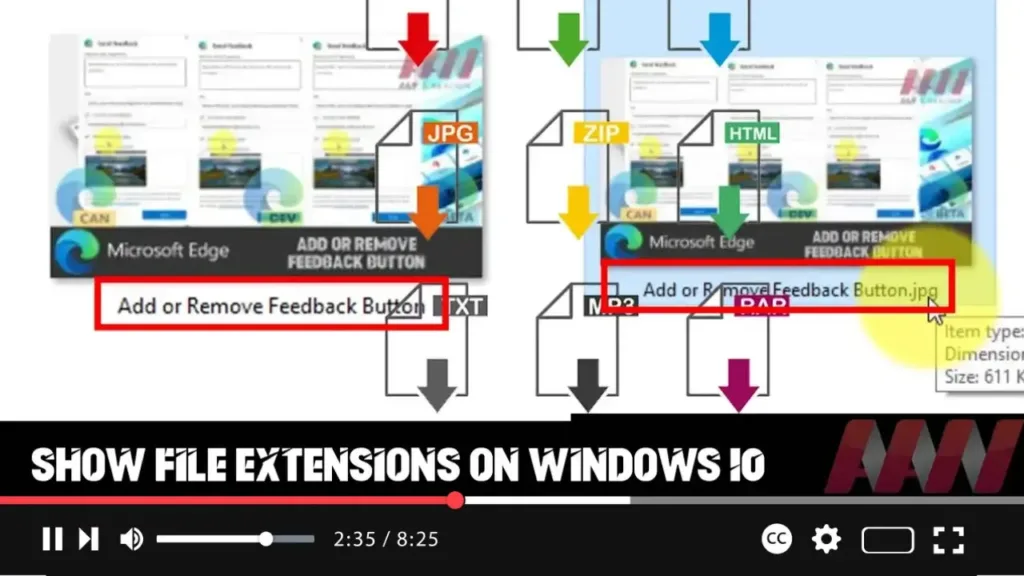

In Windows 10, file extensions are essential as they indicate the format of a file. These extensions are the characters (usually three or more) that come after the period in the file name, such as .txt, .jpg, or .docx. While the operating system doesn’t directly depend on the file extension for functionality, it’s a helpful visual cue for users to understand the file type at a glance. Moreover, it enables users to modify file extensions when necessary, especially when troubleshooting or converting files.
By default, Windows 10 hides file extensions for known file types to simplify the interface. However, this can sometimes make it difficult to identify the format of a file. For instance, a file might appear as “report” instead of “report.pdf,” which can be confusing if there are files with the same name but different extensions in the same folder.
Here’s how you can show file extensions using File Explorer in Windows 10:
Step 01:
Open File Explorer by pressing Windows + E, or by clicking the folder icon on the taskbar.
Step 02:
Click on the View tab in the toolbar at the top of the File Explorer window.
.webp)
Step 03:
In the View ribbon, locate the File name extensions checkbox. Make sure this box is checked to display the file extensions for all known file types.
Once these steps are completed, File Explorer will now display the file extension for each file, such as .pdf, .jpg, .exe, or .txt. This small change can greatly enhance your ability to manage and understand your files, especially when dealing with multiple file types.
Additional Information:
Knowing the file extension can be crucial in certain scenarios. For example, if you download a file that ends with .exe, you know it’s an executable program, and you should be cautious before running it. Similarly, if you’re sharing documents, ensuring that a file has the correct .docx or .pdf extension can prevent issues when the recipient tries to open it.
Customizing File Extensions:
For power users or those who frequently change file formats, displaying file extensions is particularly useful when renaming files. However, be careful when manually changing an extension, as mismatching the extension with the actual file type can render the file unusable.
.webp)
Security Benefits:
Showing file extensions also helps with security. Some malicious files might appear to be harmless by using names like “image.jpg” when they are actually executable files with a hidden .exe extension. When extensions are visible, it becomes easier to spot these potential threats. For instance, a file called “image.jpg.exe” would immediately raise suspicion, alerting you to a potential issue.
By following these steps, you can keep better control over your files, and stay informed about their types, improving both usability and security on your Windows 10 system.

