
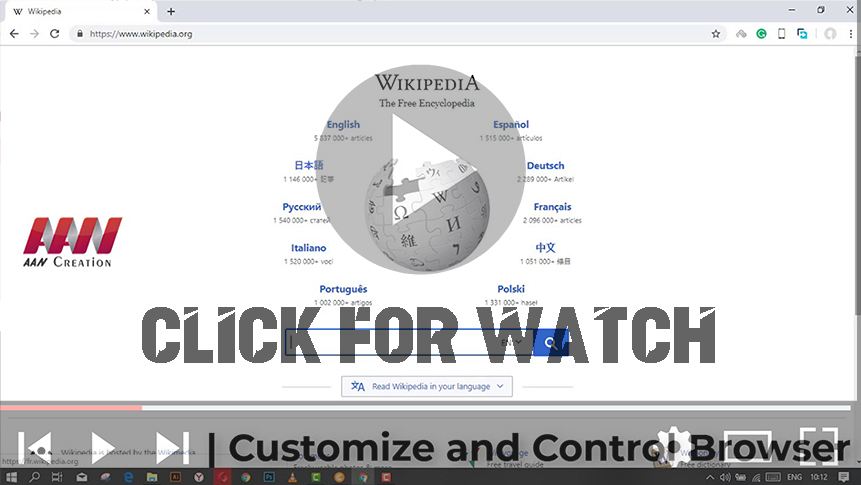

If you frequently visit the same websites, creating desktop shortcuts to them can save time and make access quicker. Whether it’s a news site, email, or your favorite blog, having a shortcut on your desktop lets you open the page instantly, without the hassle of opening your browser and typing the address manually.
Here’s how to easily create a desktop shortcut for your favorite web pages:
Step 01: Open Your Web Browser
Launch your preferred browser and go to the website you want to create a shortcut for, such as your go-to news platform or social media site.
Step 02: Click the Menu Icon
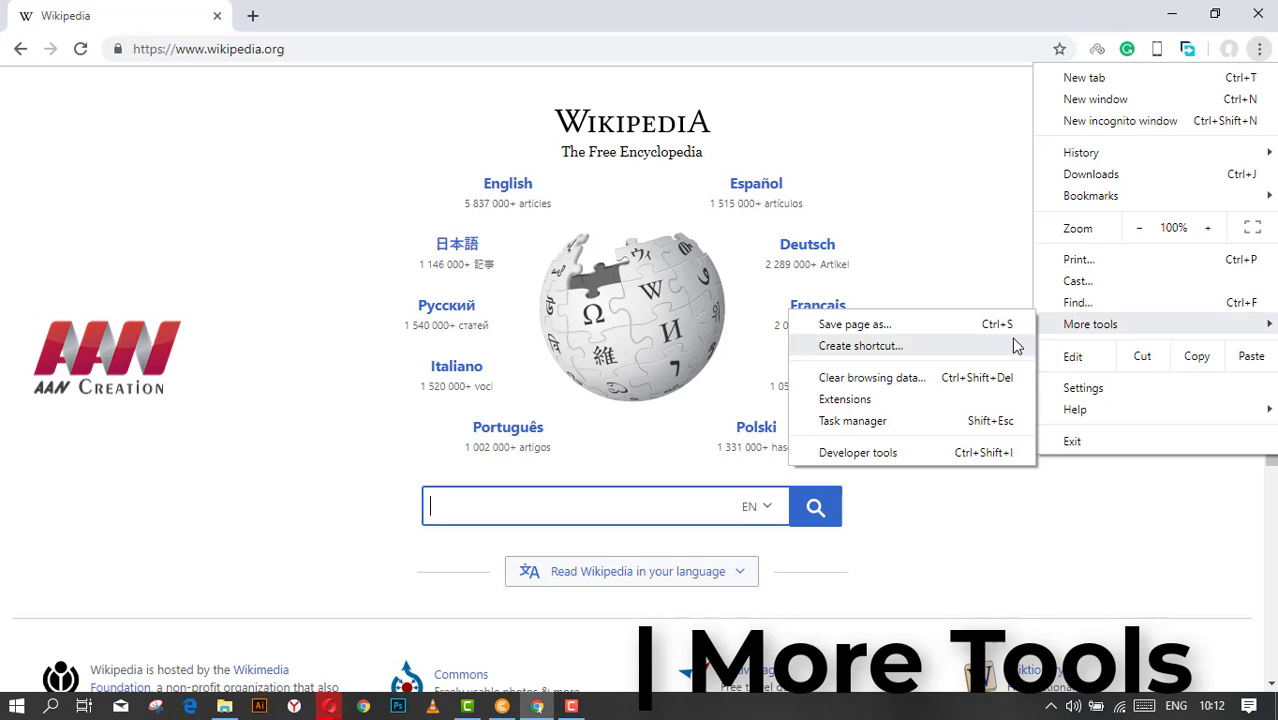
At the top-right corner of the browser window, you’ll see the three-dot menu (also called the kebab menu). Click it to open a dropdown menu.
Step 03: Select “More Tools”
From the dropdown menu, hover over the More tools option. This will expand to reveal additional tools.
Step 04: Choose “Create Shortcut”
Select Create Shortcut… from the list of options. A pop-up box will appear, asking you to name your new shortcut.
Step 05: Name the Shortcut
You can customize the name of your shortcut here. Make sure to give it a clear name that you will recognize later, such as “Gmail” or “News Site.”
Step 06: Optional – “Open as a Window”
If you want the website to open in a separate window without a search bar or browser controls, check the box that says Open as a window before clicking Create.
Step 07: Click “Create”
Once you’ve named your shortcut and configured any optional settings, click Create. Your shortcut will now appear on your desktop.
(adsbygoogle = window.adsbygoogle || []).push({});
Quick Access to Your Favorite Websites
After completing these steps, the website shortcut will be available directly on your desktop. Double-clicking it will take you straight to the page without the need to manually open your browser and navigate to the site.
Additional Tips:
- You can create as many shortcuts as you need for various websites.
- You can also customize the shortcut icon later by right-clicking the icon, selecting Properties, and changing the icon in the Shortcut tab.
This process works across most modern web browsers, including Chrome, Edge, and Brave. You can now instantly access your favorite sites, making your workflow more efficient.

