
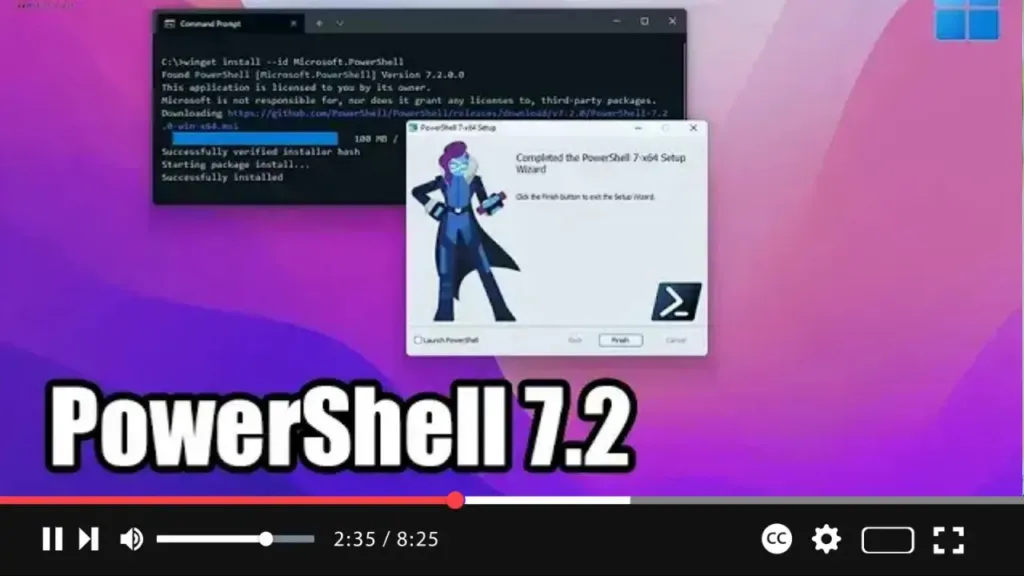

Looking to install PowerShell 7.2 on your Windows 11 system? You can do so conveniently through the Microsoft Store. Here’s a step-by-step guide to help you get it done:
Step 01: Open Microsoft Store: Start by accessing the Microsoft Store. You can do this by visiting the Microsoft Store website.
Step 02: Find PowerShell 7.2: In the search bar of the Microsoft Store, type “PowerShell 7.2” and hit Enter. Look for the official PowerShell 7.2 app in the search results.
Step 03: Initiate Installation: Once you’ve located PowerShell 7.2 in the Microsoft Store, click on the “Get” button to initiate the installation process.
.webp)
Step 04: Open PowerShell 7.2: After the installation is complete, click on the “Open” button to launch PowerShell 7.2 on your system.
Step 05: Confirm Installation: If prompted, confirm the installation by clicking on the “Get” button again from the Microsoft Store.
By following these steps, you’ll successfully install PowerShell 7.2 on your Windows 11 system using the Microsoft Store. This version brings various improvements, including support for automatic updates through the Microsoft Update system.
.webp)
Feel free to automate tasks and change system settings with PowerShell 7.2, designed for advanced users like you. Happy scripting!

