
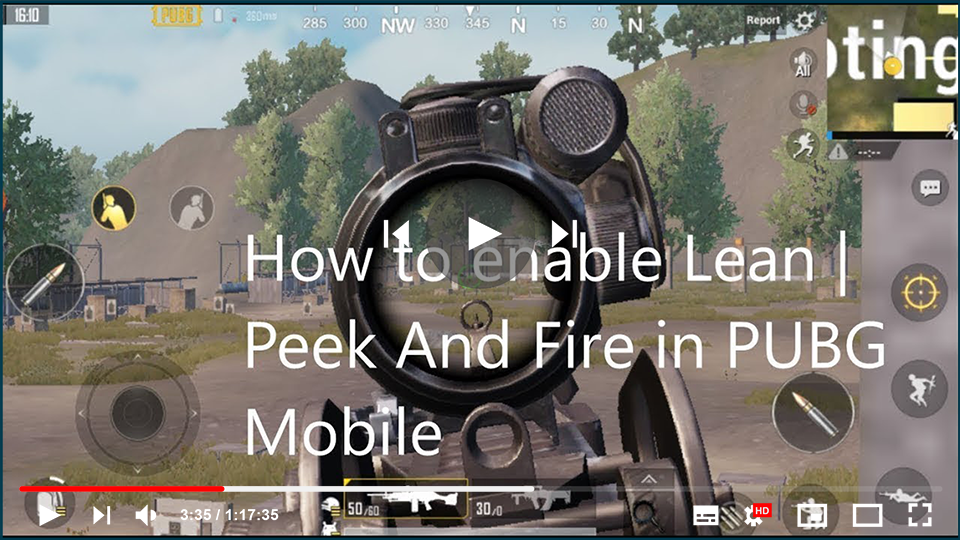
@0.5x.png)
Gameloop (formerly Tencent Gaming Buddy) is a popular emulator for playing mobile games like PUBG Mobile on a PC. However, players sometimes encounter issues where the “Peek and Fire” functionality (bound to Q and E keys) doesn’t work. This feature is crucial as it allows you to lean and fire while staying behind cover, giving you an edge in combat.
If you’re experiencing this issue, follow the steps below to fix and enable “Peek and Fire” in Gameloop.
Steps to Enable Peek and Fire in PUBG Mobile on Gameloop:
Step 01: Open Game Settings
Launch PUBG Mobile in Gameloop and open the game settings.
Step 02: Click on the Basic Option
In the settings menu, click on the “Basic” tab. This section contains general settings for gameplay.
Step 03: Enable Peek and Fire
Scroll down in the Basic settings until you find the “Peek & Fire” option. This feature is disabled by default, and you must manually turn it on.
- Enable Peek & Fire: Toggle the switch to enable this feature.

(adsbygoogle = window.adsbygoogle || []).push({});
Step 04: Choose Tap or Hold for Leaning
Once Peek & Fire is enabled, you can further customize how the feature works:
- Tap to Lean: You will lean only when you tap the Peek button.
- Hold to Lean: You need to hold the Peek button to continue leaning.
Step 05: Adjust Button Placement
On your in-game screen, the Peek and Fire buttons will appear just above the movement button. Ensure they are placed in a position where you can easily access them.

Quick Fix for Q and E Keys Not Working in Gameloop:
If after enabling Peek & Fire, your Q and E keys are still not working, it may be due to improper key mapping in Gameloop.
- Open Key Mapping Settings: On the Gameloop interface, open the key mapping option (usually an icon at the top-right corner of the emulator).
- Check Q and E Bindings: Ensure that the Peek Left and Peek Right actions are bound to the Q and E keys. If not, manually assign them.
- Save Changes: Once you’ve updated the key mappings, save the changes and restart the game.
Following these steps will enable the Peek & Fire functionality, allowing you to lean, take cover, and shoot while reducing your exposure to enemies.

