
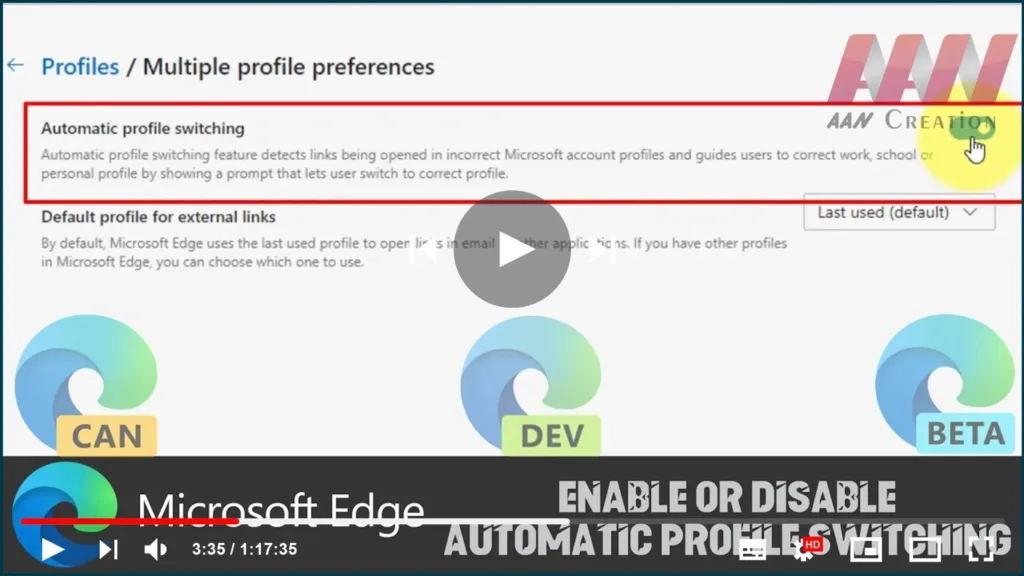

Microsoft Edge has received a new feature. It is able to detect if a link is being opened in the wrong Microsoft Account profile and hits the user to select the proper browser profile to open it.
The addition is useful for users having multiple profiles in Microsoft Edge Chromium. As we may already know, Edge Browser supports opening links with a different profile from the link context menu. This option is similar to Google Chrome Browser. In addition, Edge introduced the ability to set a default browser profile to open external links, for example, the links you click in third-party apps.
The automatic Profile Switching feature detects links being opened in incorrect Microsoft account profiles and guides users to the correct work, school, or personal profiles by showing a prompt that lets the user switch to the correct profile.
In this guide, you’ll learn the steps to Enable or Disable Automatic Profile Switching In Microsoft Edge Chromium.
Use these steps to Enable or Disable.
01. Open Microsoft Edge.
02. Click on the menu button with three dots.
03. Select Settings from the menu.
04. In Settings, Click on Profiles on the left.

05. On the right, click on Multiple Profile Preferences.
06. On the next page, turn on or off the Automatic profile switching option for what you want.

if we do not have the Multiple Profile Preferences option on the right, this means that we have only one profile. Create another profile to put the feature to the test.

