
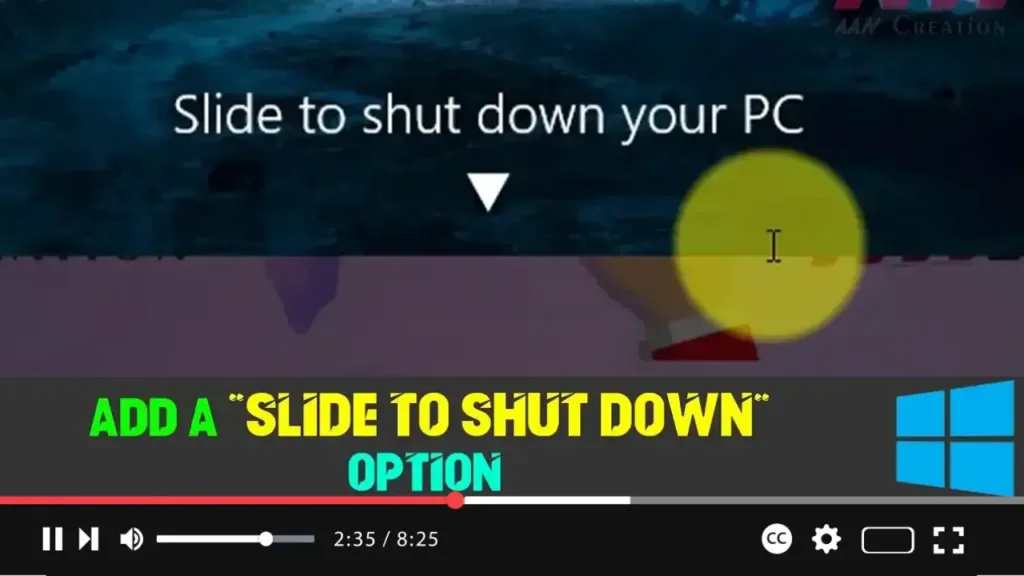

Shutting down your computer may seem like a no-brainer, but did you know there’s a more interactive way to do it on Windows 10? Yes, we all know the classic methods of clicking Start, then Power, and selecting Shut down, but that’s pretty old-school! Microsoft introduced a fun way to power off your PC called Slide to Shut Down, originally for tablets and touch devices.
Even if you’re using a regular desktop or laptop (without a touchscreen), you can still activate this cool gesture with just a few tweaks. Here’s how you can add the Slide to Shut Down feature to your Windows 10 setup and make shutting down more fun and interactive.
Why Add “Slide to Shut Down”?
Let’s face it, sometimes little things can make a big difference. Not only does the Slide to Shut Down feature look modern, but it’s also a quick and stylish way to power off your computer, especially if you’re the kind of person who loves customization. Plus, if you use your computer in front of others, it’s sure to impress! And don’t worry—this works even without a touch screen!
Steps to Add “Slide to Shut Down” on Windows 10
Let’s walk through how to create a desktop shortcut for Slide to Shut Down:
Step 01: Right-Click on Your Desktop
- Start by right-clicking on an empty space on your desktop. This brings up a context menu with a bunch of options.
Step 02: Create a New Shortcut
- In the context menu, hover over New and click Shortcut. This opens a window where you’ll create your custom shortcut.
.webp)
Step 03: Enter the Slide to Shut Down Command
-
When prompted to enter the location for the shortcut, type in the following command:
%windir%System32SlideToShutDown.exeThis command links directly to the Slide to Shut Down tool within Windows.
.webp)
Step 04: Name Your Shortcut
- After entering the command, click Next and name your shortcut something descriptive like Slide to Shut Down. This will help you easily recognize it later.
Step 05: Click Finish to Create the Shortcut
- Finally, click Finish, and voila! You now have a shortcut on your desktop that launches the Slide to Shut Down feature.
How to Use “Slide to Shut Down”
Now that you’ve created the shortcut, using it is super simple. Double-click the shortcut, and a sleek shutdown screen will slide down from the top of your monitor. To shut down your PC, just drag the screen down to the bottom, either with your mouse or by swiping if you have a touchscreen. If you change your mind, click anywhere on the screen, and the action will be canceled.
.webp)
Bonus: Make It Even Faster!
If you want to access the Slide to Shut Down feature even quicker, you can pin it to your taskbar for one-click access:
- Right-click the shortcut you just created.
- Select Pin to taskbar.
Alternatively, you can assign a keyboard shortcut to launch it by right-clicking the shortcut, going to Properties, and under the Shortcut tab, assigning a custom key combination.
What’s the Benefit of Using “Slide to Shut Down”?
Using the Slide to Shut Down feature might sound like just a fancy trick, but it has real benefits:
- Efficiency: It’s a quick and smooth way to shut down without navigating multiple menus.
- Customization: If you love personalizing your PC experience, this is one more way to make your computer feel unique.
- Fun: Let’s admit it—it’s simply fun to use! Instead of the traditional shutdown methods, this gesture-based approach adds a bit of flair to your daily routine.
- Tablet-like Experience: Even without a touchscreen, you can enjoy the interactive shutdown experience that’s usually reserved for tablets.
.webp)
Common Questions About “Slide to Shut Down”
Q: Will this work on non-touchscreen devices?
Absolutely! While originally designed for touch devices, the feature works perfectly with a mouse on any Windows 10 computer.
Q: Can I use this as my primary shutdown method?
Definitely! You can pin it to your taskbar or assign a keyboard shortcut for quick access, making it your go-to way to power off your PC.
Q: Does this affect the shutdown process in any way?
Nope. The shutdown process remains the same; this just adds an interactive way to initiate it. It’s purely a visual and user experience upgrade.
Final Thoughts: Bring Some Style to Your Shutdown
Why settle for the old-fashioned shutdown method when you can slide your way to a powered-off PC in style? Whether you’re trying to impress your friends or simply want a smoother, more efficient shutdown process, Slide to Shut Down on Windows 10 is a fun and simple tweak that’s worth trying.
By adding this quick shortcut, you’re upgrading your experience with just a few clicks. Plus, if you’re all about making your PC feel more modern and user-friendly, this is the perfect trick to add to your toolbox.
With just a few steps, you’ve transformed one of the most mundane tasks into something more interactive. Now go ahead, try it out, and make shutting down fun again!

