
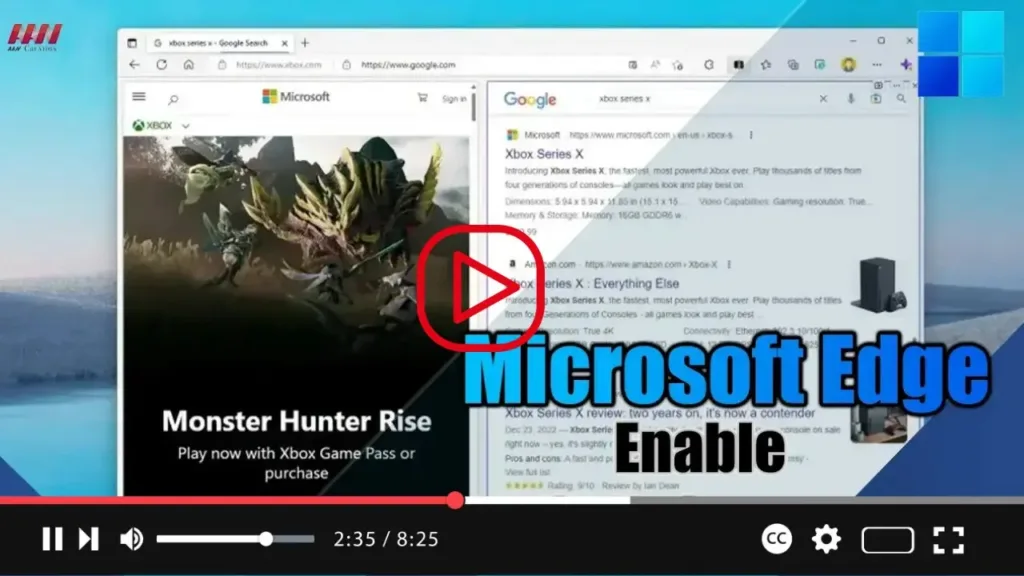

Microsoft Edge is introducing a new “Split window” feature that allows users to view two tabs side-by-side within the same window for easy comparison of web pages. This guide will walk you through the steps to enable the split screen feature on Microsoft Edge in Windows 11.
.webp)
-
Open Microsoft Edge: Launch Microsoft Edge on your Windows 11 computer by clicking on the Edge icon in the taskbar or searching for it in the Start menu.
-
Open the First Website or App: Navigate to the first website or app that you want to view in split screen mode.
-
Drag the Tab to One Side: Click and hold the tab for the website or app, then drag it to the left or right side of the screen until a blue box appears.
-
Release the Tab: Release the tab when the blue box appears, snapping the website or app to that side of the screen.
-
Open the Second Website or App: Open the second website or app that you want to view in split screen mode.
-
Drag the Second Tab to the Other Side: Click and hold the tab for the second website or app, then drag it to the opposite side of the screen until a blue box appears.
-
Release the Second Tab: Release the tab when the blue box appears on the other side of the screen, snapping the second website or app to that side.
-
Adjust Window Sizes: You can adjust the size of each window by clicking and dragging the line between the two windows to make one larger or smaller.
.webp)
By following these steps, you can enable the split screen feature on Microsoft Edge in Windows 11, allowing you to view multiple websites or apps side-by-side for improved multitasking and productivity.

