
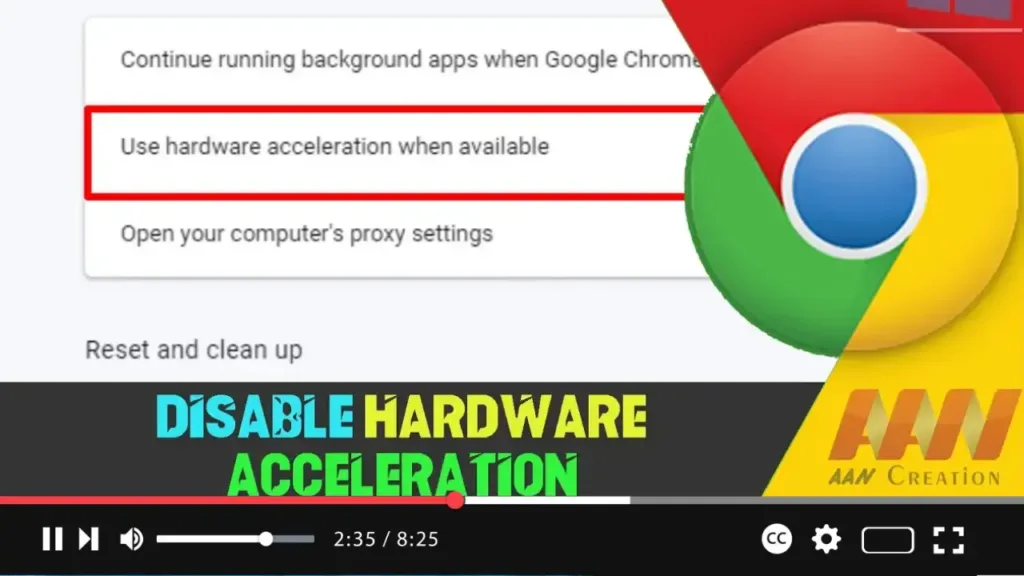

Hardware acceleration in Google Chrome is designed to improve performance by offloading certain tasks to your computer’s GPU (Graphics Processing Unit). However, it can sometimes cause issues, such as screen flickering, crashing, or other performance problems. Disabling hardware acceleration can help resolve these issues. This guide will walk you through the steps to disable hardware acceleration in Google Chrome on Windows 10.
Introduction
Disabling hardware acceleration forces Chrome to render graphics and perform other tasks using the CPU instead of the GPU. While this may slightly impact performance, it can resolve compatibility and stability issues for some users.
Steps to Disable Hardware Acceleration in Google Chrome
Step 01: Open Google Chrome Settings
Open Google Chrome on your Windows 10 device.
Click on the three vertical dots (menu icon) located at the top-right corner of the browser.
Select “Settings” from the drop-down menu.
Step 02: Access Advanced Settings
Scroll down to the bottom of the Settings page.
Click on “Advanced” to reveal additional settings options.

Step 03: Disable Hardware Acceleration
In the “System” section, locate the “Use hardware acceleration when available” option.
Toggle the switch to the “Off” position.
Click on the “Relaunch” button that appears to restart Chrome and apply the changes.
Additional Information
Benefits of Disabling Hardware Acceleration
- Improved Stability: Disabling hardware acceleration can resolve issues related to screen flickering, crashes, and performance anomalies.
- Compatibility: It can improve compatibility with certain websites and extensions that may not work well with hardware acceleration enabled.
- Troubleshooting: Disabling this feature can be a useful troubleshooting step when diagnosing browser-related issues.
Considerations
- Performance Impact: Disabling hardware acceleration may lead to slightly lower performance, especially when rendering complex graphics or video content.
- Re-enable If Needed: If you notice a significant drop in performance or if disabling hardware acceleration does not resolve your issue, you can always re-enable it by following the same steps and toggling the switch to “On.”
Conclusion
Disabling hardware acceleration in Google Chrome can help resolve various issues related to graphics rendering and browser stability. By following the steps outlined above, you can quickly and easily disable this feature and improve your browsing experience. If needed, you can re-enable hardware acceleration at any time.

