
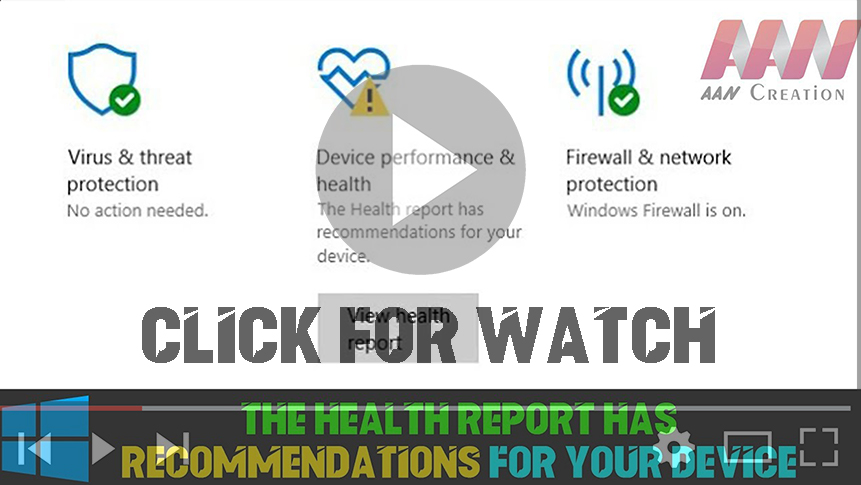

Windows Defender Battery Life Warning – infinite timeout
After the 1703 Creators Update installed, I received a battery power
warning that “The sleep timeout on this device is currently set to
infinite”. Opening the power settings and correcting the battery
timeout from ‘Never’ to 15 minutes did not clear the warning, even after a
restart. I then changed the plugged in setting from Never to 5 hours
and restarted but the warning still persists.
UPDATE
I tried the solution suggested below and assumed this had no effect
because SFC did not find any problems and the flag remained.
Following the steps for the clean boot includes disabling Defender
warnings so I could not see if there was a warning. After the
failure of the DISC process and a further reboot, I used Task Manager
to re-enable Defender warnings. The warning is no longer
reported. It may be that simply using the start-up tab in Task
Manager to disable warnings followed by a reboot and re-enabling
warnings is all that is required. I tried to test this by
setting the timeouts back to ‘Never’, but Defender no longer warns that I
have an infinite timeout set…
Track your device performance and health in Windows Security
(adsbygoogle = window.adsbygoogle || []).push({});
To help you keep your device secure, Windows Security monitors your
device for security issues and provides a health report, which appears
on the Device performance & health page. The Health
report alerts you to common issues with your system and
offers recommendations to remedy them. For more info on Windows
Security see Stay protected with Windows Security.
View the Health report for your device in Windows Security
-
In the search box on the taskbar, type Windows Security, and then select it from the results.
-
Select Device performance & health to view the Health report.
Note: If your device is part of an organization, your administrator may
not have granted you permission to view Device performance &
health.
The Health report starts off by showing you the last time a Device
Health scan was run. The time displayed should be basically the
current time, as Windows Security tries to run a Device
Health scan when you open the page.
Beyond the time of last scan, what you see in this report will
vary, depending on your Windows version, device, permissions, and the
issues (if any) that are found.
performance & Health. 03. Click the Battery life. 04. Open
settings. 05. Additional power settings. 06. Change plan settings.
07. Restore default settings for this plan.
There are several reasons which can cause this error in your
computer. One of these is a corrupted or missing system file.
You may run the System File Checker to identify and troubleshoot this error.
You can also follow the steps through Fix Windows Update errors by using the DISM or System Update
Readiness tool to check for any update errors.
Note: Please perform the Clean boot on your PC.
Clean Boot temporarily disables all third party applications as
well as all Microsoft non-essential services so only basic
drivers will run. This will help us find any third-party
software which can be the cause of this issue.
(adsbygoogle = window.adsbygoogle || []).push({});
Here are the steps:
-
From Start, search for msconfig
-
Select System Configuration from the search results.
-
On the Services tab of the System Configuration dialog box,
tap or click to select the Hide all Microsoft services check box, and then tap or click Disable all.
-
On the Startup tab of the System Configuration dialog box,
tap or click Open Task Manager.
-
On the Startup tab in Task Manager, for each startup item,
select the item and then click Disable.
-
Close Task Manager.
-
On the Startup tab of the System Configuration dialog box,
tap or click OK, and then restart the computer.

