
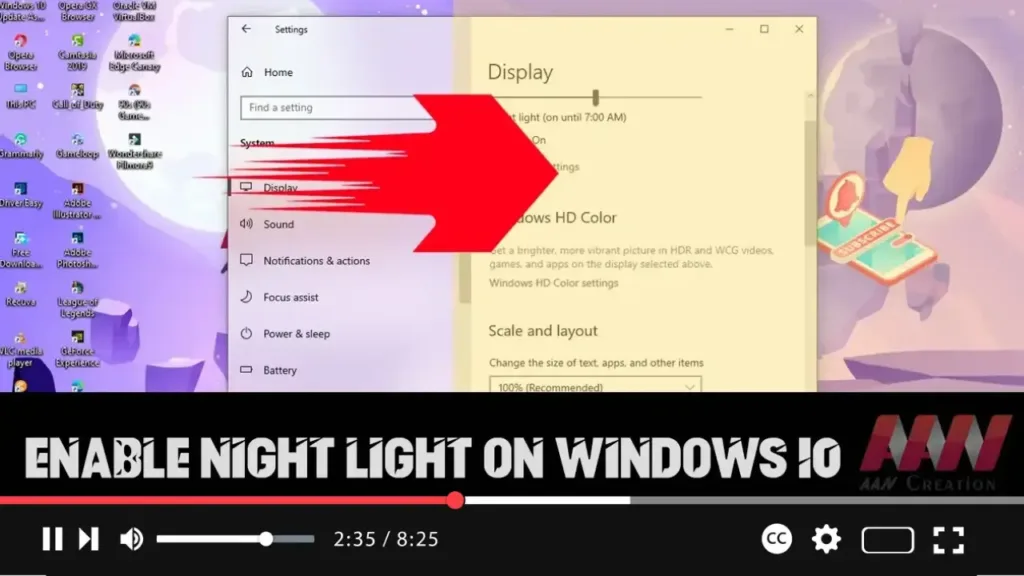

Windows 10 offers a built-in feature called “Night light” designed to reduce eye strain and improve sleep quality by reducing the amount of blue light emitted from your screen. Blue light, commonly seen during the day, can interfere with your body’s natural sleep cycle if you’re exposed to it late at night. The Night light feature adjusts your display to show warmer colors, creating a more soothing screen experience during evening hours.
This feature is particularly useful for those who spend a lot of time working on their computer at night or in low-light environments. Studies suggest that prolonged exposure to blue light can contribute to eye fatigue and disrupt circadian rhythms, making it harder to fall asleep.
Steps to Enable Night Light on Windows 10:
Step 01:
Open Settings by pressing Windows + I or by selecting the gear icon from the Start menu.
Step 02:
Click on System.
Step 03:
In the left-hand menu, click on Display.
.webp)
Step 04:
Under the “Brightness and color” section, find the Night Light toggle switch. Turn it on to enable Night light.
Step 05:
Once enabled, you can click on the Night light settings link below the toggle to customize how Night light works. You can manually adjust the color temperature to determine how warm the screen should appear when Night light is active. A slider allows you to control how much blue light is filtered out, ranging from a subtle change to a more dramatic shift to warmer tones.
Step 06:
You can also schedule Night light to turn on and off automatically. Under Schedule Night light, toggle the Turn on now switch to manually activate it, or click Set hours to choose specific times for Night light to turn on and off each day. Alternatively, you can select Sunset to sunrise if you want Night light to activate automatically based on your location.
Quick Method:
An alternative method to enable Night light quickly is through the Action Center:
- Press Windows key + A to open the Action Center.
- In the Action Center, click on the Night light button. This will immediately turn Night light on or off.
.webp)
Additional Information:
-
Health Benefits: Night light reduces blue light exposure, which is beneficial for maintaining your circadian rhythm. Studies show that blue light, especially in the evening, can trick your brain into thinking it’s still daytime, suppressing melatonin production, and making it harder to fall asleep.
-
Customization: By adjusting the color temperature in the settings, you can customize Night light to match your personal preferences. Warmer colors are less likely to interfere with your sleep, while cooler colors may still provide a balance between screen visibility and eye comfort.
-
Automatic Scheduling: Scheduling Night light to turn on from sunset to sunrise ensures that it adapts to your local environment. This makes it easier to use the feature without needing to manually adjust it every day, allowing for a smoother transition in your daily routine.
-
Improved Focus: Many users find that working with reduced blue light not only alleviates eye strain but also helps them focus more easily on tasks by reducing glare and providing a more calming viewing experience.
-
Compatibility: Night light works across most modern displays and should not affect performance. If you’re using an external monitor, it will apply the settings globally across all connected displays.
By following these steps, you can easily enable and customize the Night light feature on your Windows 10 device, enhancing your comfort and promoting better sleep habits while using your computer at night.

