
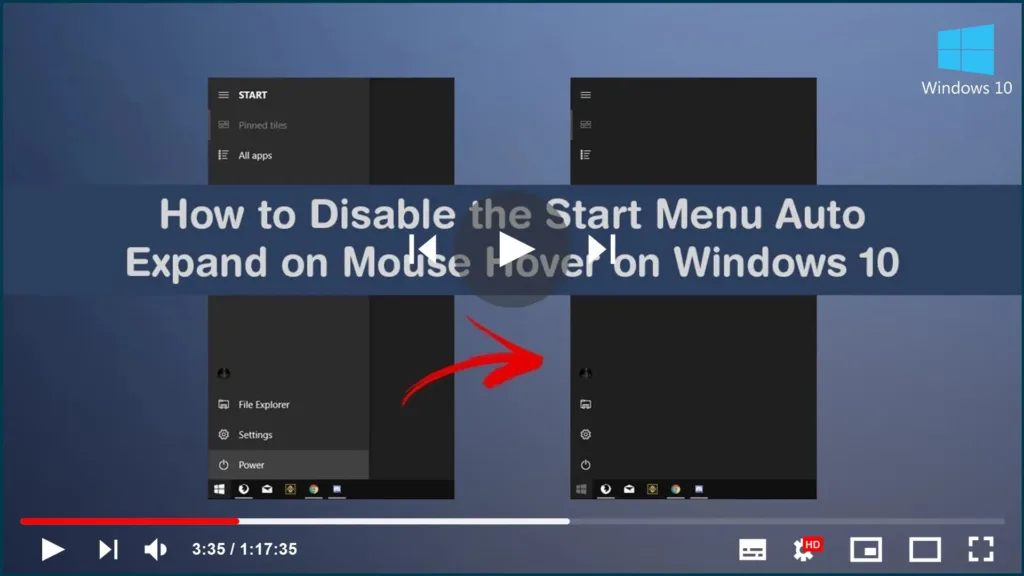

Start menu and hover over the left pane, the name of the items in the
list will be revealed.
not something that everyone wants, because it can get in the middle when
navigating the menus, and it can make it more difficult to access the
power options.
in your installation using a third-party tool called “mach2” from Rafael
Rivera.
left panel in the Start menu on Windows 10.
hovering over with the mouse, use these steps:
Warning: This is a third-party application, and it’s offered without
any warranty. Although it should work as advertised, you should use it
only at your own risk. Also, there’s a chance that Windows Defender
Antivirus may identify this app as malicious, but according to the
author, it’s a false positive.
01. Download the
latest mach2 zip folder.
*Tips: You’ll need to download the zip folder that corresponds
to your system architecture (x86 or x64), you can check the version of
Windows 10 that you’re running on Settings ➡ System ➡ About.
02. Click the Extract to button from the “Winrar” or Use any
other Extractor
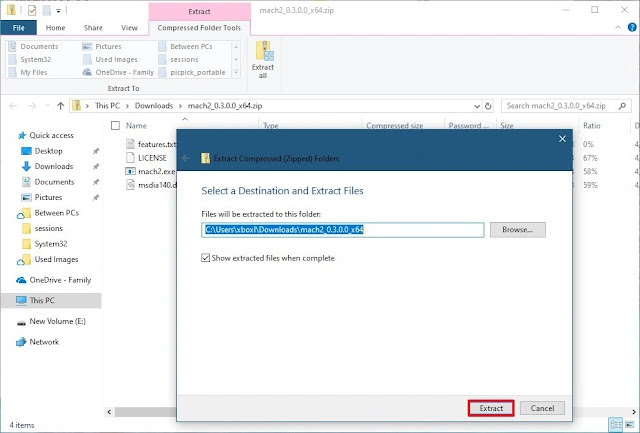
03. Copy the path to the folder.
04. Open Start.
05. Search for Command Prompt, right-click the top result, and select
the Run as administrator option.
(adsbygoogle = window.adsbygoogle || []).push({});
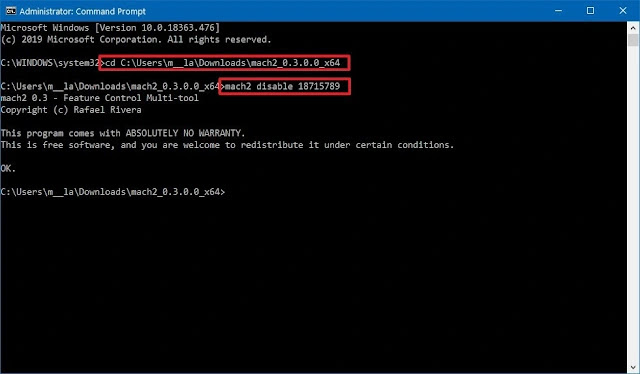
press Enter: cd
C:YOURFOLDERPATHDownloadsmach2_0.3.0.0_x64
command.
and press Enter: mach2 disable 18715789
longer expand when you hover your mouse over it.
step No. 07, make sure to use this command: and then restart your computer.

