
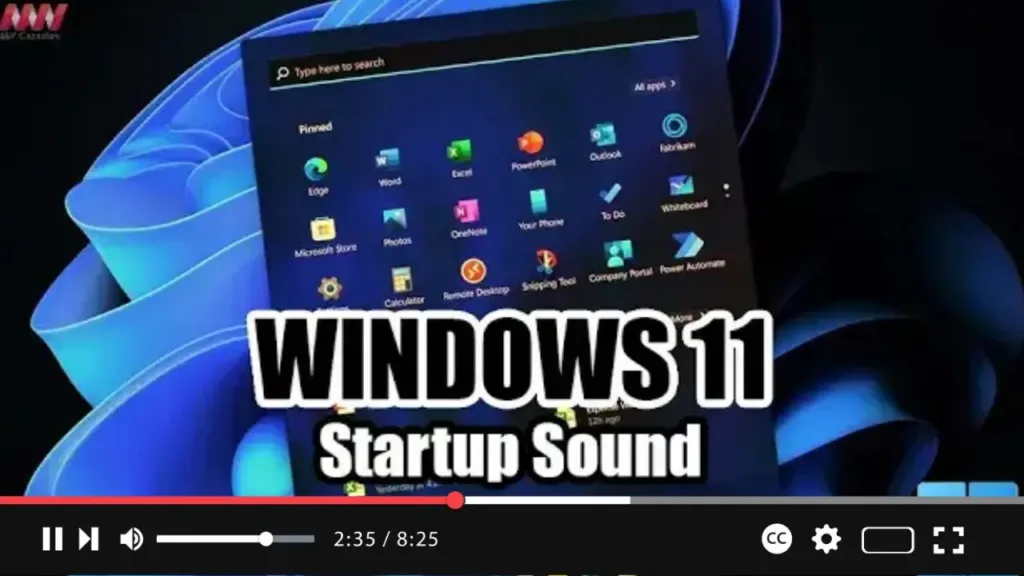

Windows 11 brings back the startup sound, but you can disable the feature if you prefer to start the device silently. Although Windows has included system sounds for a long time, the startup sound was disabled by default on Windows 10. However, on Windows 11, Microsoft reintroduces the sound you hear the first time the OS boots up, alongside a new scheme of sounds for events and applications. If you prefer not to hear it, you can disable it through the Themes settings.
In this video, you will learn the steps to enable or disable the startup sound on Windows 11. Follow these steps:
Step-by-Step Instructions
Step 01: Open Start on Windows 11
- Click on the Start button.
- Open the Settings app.
Step 02: Navigate to Personalization
- In the Settings app, click on the “Personalization” option.
Step 03: Access the Themes Settings
- Click the “Themes” page on the right side.
Step 04: Open Sound Settings
- Click the “Sounds” option.
- This will open the Sound settings window.
Step 05: Modify Startup Sound Settings
- Click the “Sounds” tab.
- Clear the “Play Windows Startup sound” checkbox to disable the Windows 11 startup sound.
Step 06: Apply and Save Changes
- Click the “Apply” button.
- Click the “OK” button to save your changes.

To Enable the Startup Sound
- Follow the same instructions up to Step 05.
- Check the “Play Windows Startup sound” checkbox to enable the Windows 11 startup sound.
- Click the “Apply” button, then the “OK” button.
Once you complete these steps, Windows 11 will no longer play a sound during startup if disabled, or will play the sound if enabled.

