
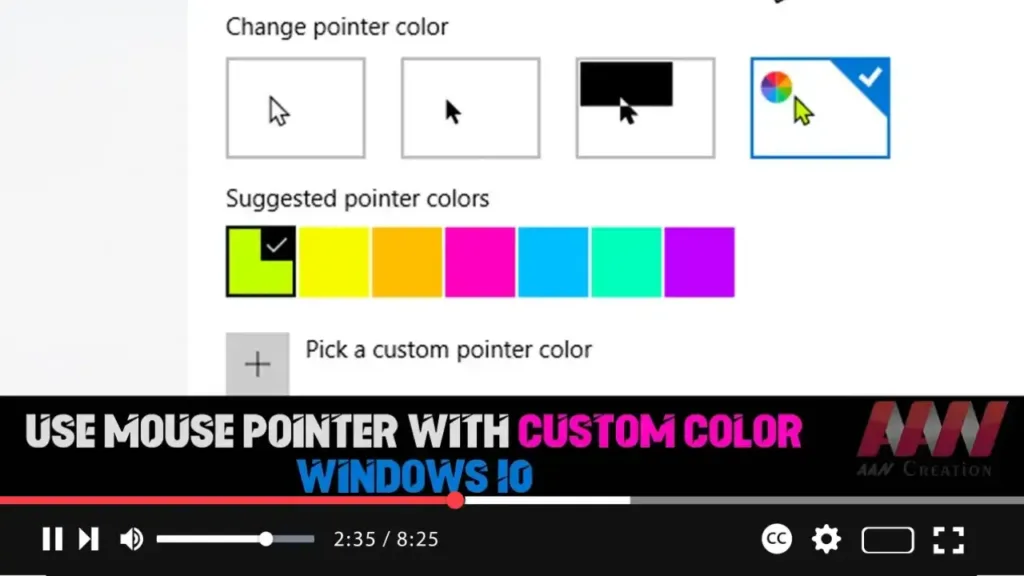

In Windows 10, customizing the appearance of the mouse pointer has always been possible in terms of style and size, but color options were historically limited to black and white. This changed with the release of Windows 10 version 1903 (May 2019 Update), which introduced a feature that allows you to personalize your mouse pointer with any color, giving you more control over its appearance.
This new ability to customize the pointer with a color of your choice is not just a visual enhancement. It can also improve accessibility, especially for users who might find it difficult to see the default pointer against certain backgrounds. Whether you want a bright neon color for better visibility or simply prefer a color that matches your personal taste, this feature offers flexibility.
Steps to Change the Mouse Pointer Color on Windows 10:
Step 01:
Open Settings by pressing Windows + I or by clicking the gear icon in the Start menu.
Step 02:
Click on Ease of Access.
Step 03:
In the left-hand menu, click on Cursor & pointer.
.webp)
Step 04:
Under the “Change pointer color” section, you’ll see four options. The last button, which features a color wheel, allows you to choose from a range of colors. Click this button.
Step 05:
You can either select one of the suggested colors or click on the Pick a custom pointer color option to choose a color more specific to your liking. If you opt for a custom color, a palette will appear, allowing you to select any shade. You can even fine-tune the color by adjusting the hue, brightness, and saturation.
Once you’ve completed these steps, your mouse pointer will immediately change to the color you selected. This will be applied across your entire Windows 10 system, including all applications and windows.
Additional Information:
-
Improved Visibility: A customized pointer can make it easier to track your mouse on the screen, particularly if you frequently use large monitors or have vision difficulties. For example, using a bright yellow or neon green pointer could make it stand out more against dark backgrounds.
-
Personalization: Customizing the color adds a personal touch to your interface. You can choose colors that match your overall desktop theme or simply a color that you find aesthetically pleasing.
-
Accessibility: For users with visual impairments or color blindness, this feature can be critical for making the interface more accessible. By selecting high-contrast colors, the pointer can be more easily distinguishable, improving the user experience.
-
Custom Pointer Size: Along with color customization, you can also change the pointer size. This can be especially helpful for users who need larger or smaller pointers to suit their needs.
.webp)
-
Versatile for Different Backgrounds: One of the significant benefits of using custom colors is the ability to pick a color that remains visible regardless of the background you’re working on. For example, if you often switch between light and dark windows, a color like orange or pink can be more consistently visible.
By following these steps, you can fully personalize the mouse pointer on your Windows 10 device, making it both more functional and visually appealing. Whether for aesthetic reasons or to enhance your productivity, this feature provides a simple way to improve your interaction with your device.

