

On Windows 10, the new Microsoft Edge based on Google’s Chromium engine
allows you to install additional languages to change the default display
language across the experience (including settings and messages) to match
the language you understand. The ability to add additional language
packages also allows the browser to check spelling in multiple
languages.
allows you to install additional languages to change the default display
language across the experience (including settings and messages) to match
the language you understand. The ability to add additional language
packages also allows the browser to check spelling in multiple
languages.
In this guide, you’ll learn the steps to add and remove new languages to
the Chromium version of Microsoft Edge.
the Chromium version of Microsoft Edge.
To add a new language, use these steps:
01. Open Microsoft Edge.
02. Click the Settings and more (three-dotted) button.
03. Select the Settings option.
04. Click on Languages.
(adsbygoogle = window.adsbygoogle || []).push({});

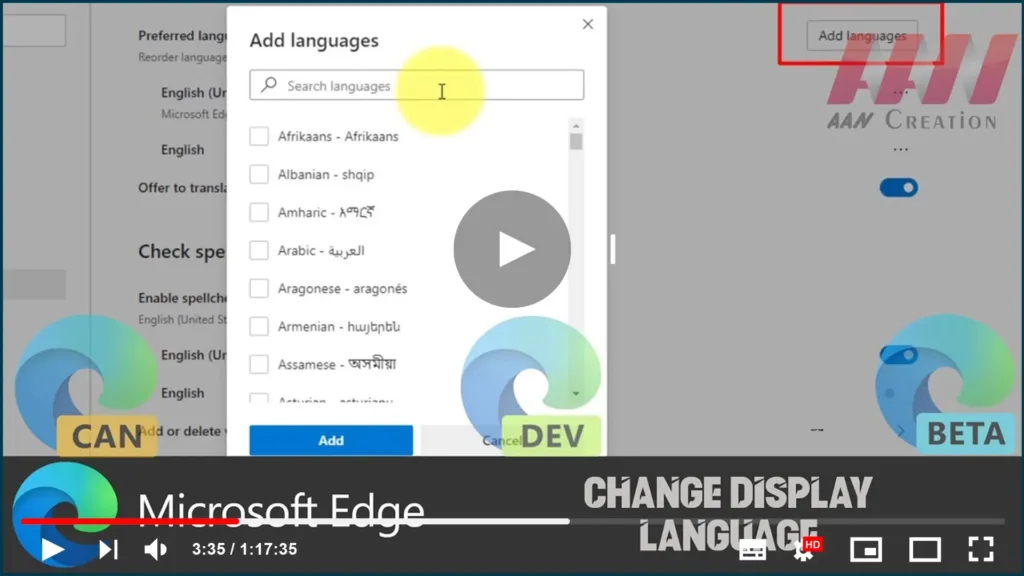
05. Click the Add languages button.
06. Check the language that you wish to add.

07. Click the Add button.
08. check the display of Microsoft edge in this language option
09. click restart
Once you complete the steps, the new language will be added independently
of the system settings.
08. check the display of Microsoft edge in this language option
09. click restart
Once you complete the steps, the new language will be added independently
of the system settings.

Under the “Languages” section, click the menu (three-dotted) button next to
the language. and Click the Remove button.
After you complete the steps, the language pack will be removed from the web
browser.

