
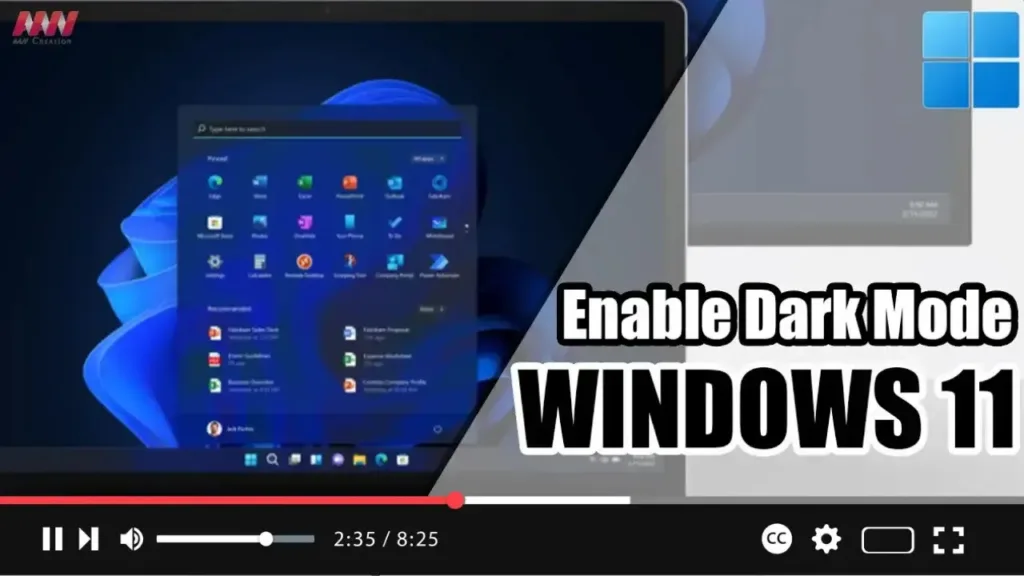

On Windows 11, Microsoft is making the dark color mode the default experience for commercial customers to help reduce eye strain since they usually spend many hours in front of a computer. However, anyone can switch from light or custom color mode to dark mode and vice versa using the Personalization settings.
When enabling the dark mode, desktop elements like the taskbar, Start menu, File Explorer, and other supported apps (for example, Microsoft Edge) will shift to a dark color scheme with white fonts. If you choose the default dark theme, it will also include a dark version of the default wallpaper.
In this video, you will learn the steps to quickly change the color mode of the Windows 11 desktop to dark. Use these steps:
Step 01: Open Settings Open Settings on Windows 11.
Step 02: Navigate to Personalization Click on Personalization.
Step 03: Access Colors Settings Click the Colors page on the right side.
Step 04: Enable Dark Mode Use the “Choose your mode” setting and select the Dark option to enable the Windows 11 dark mode.
Step 05: Apply Dark Theme Under the “Select a theme to apply” section, choose the Windows (dark) theme.

Step 06: Confirm Theme Selection Click the “Themes” page on the right side.
Step 07: Choose a Dark Theme Under the “Current theme” section, choose the Windows (dark) or any of the other themes with a dark color scheme like Glow and Captured Motion.
Once you complete the steps, the experience color scheme of Windows 11 will switch to the dark mode, tinting the desktop elements with a dark color scheme.

