
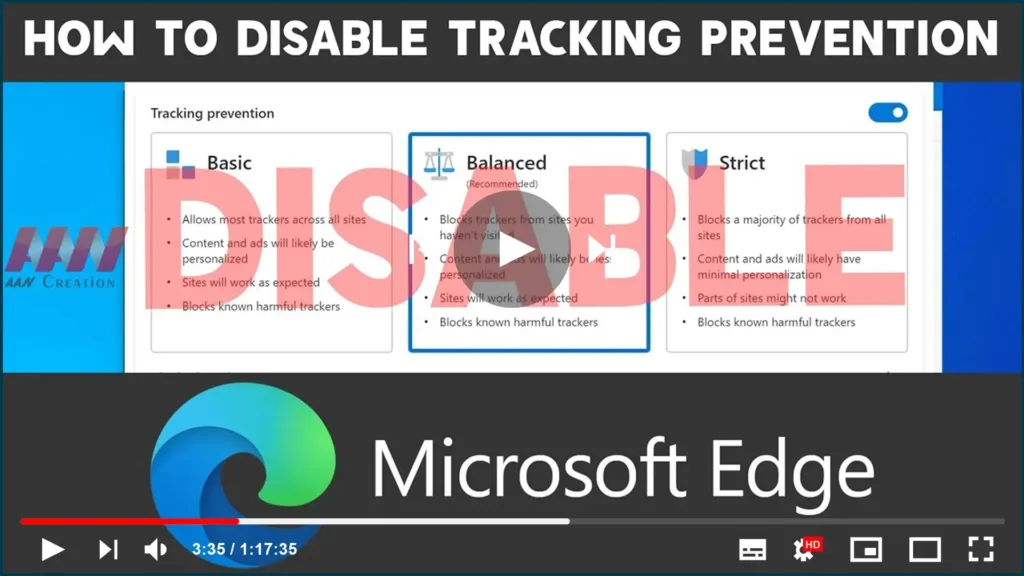

Microsoft Edge Chromium now includes “Tracking prevention,” a security
feature that allows you to select one of the three-level of privacy (Basic,
Balanced, or Strict) to block online trackers from collecting information
about you to minimize targeting ads and personalized experience on Windows
10, macOS, and Linux.
Although it’s a helpful feature, it’s not for everyone. Suppose you prefer
to allow unrestricted access to trackers to prevent possible issues loading
websites, or you don’t mind websites using the information to personalize
your experience. In that case, you can disable the tracking prevention
system in at least two different ways.

(adsbygoogle = window.adsbygoogle || []).push({});
01. How to disable tracking prevention feature using main settings
02. How to disable tracking prevention feature using flags settings
In this guide, you’ll learn the steps to completely disable the tracking
prevention system on the Chromium version of Microsoft Edge.
How to disable tracking prevention feature using main settings
To disable tracking prevention, use these steps:
01. Open Microsoft Edge.
02. Click the Settings and More (three-dotted) button on the top-right
corner.
03. Select the Settings option.
04. Click on Privacy and services.

05. Turn off the Tracking prevention toggle switch.
When you finish the steps, tracking prevention will be disabled, and
websites should load normally again, but online trackers will be able to
collect information about your activities.
How to disable tracking prevention feature using flags settings
settings:
edge://flags/#edge-tracking-prevention
option.

04. Click the Relaunch Now button.
After you complete the steps, tracking proception for Microsoft Edge will be
disable, and it’ll no longer be available through the privacy and services
settings page.

