
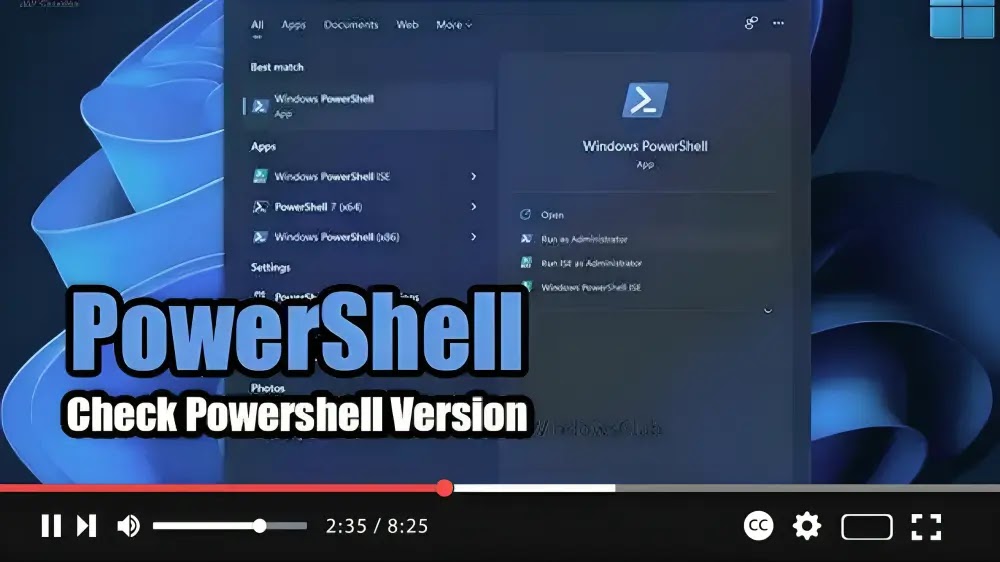

If you’re curious about which version of PowerShell you’re currently using on your Windows system, here’s a quick guide to help you find out:
Step 01: Open PowerShell: Press the Windows key + R to open the Run dialog box. Then, type “powershell” and hit Enter to launch a new PowerShell prompt.
Step 02: Check the Version: In the newly opened PowerShell window, type the following command and press Enter:
$PSVersionTable
This command will display a list of details related to your PowerShell utility. Look for the “PSVersion” entry, which indicates the version of PowerShell you’re currently using. If you’ve installed all the pending updates through Windows Update, you should have the latest version installed.

By following these simple steps, you can quickly determine which version of PowerShell is installed on your Windows system. Whether you’re using PowerShell 5.0 or the superior version 5.1, you’ll have the information you need to ensure compatibility with various scripts and utilities.

