
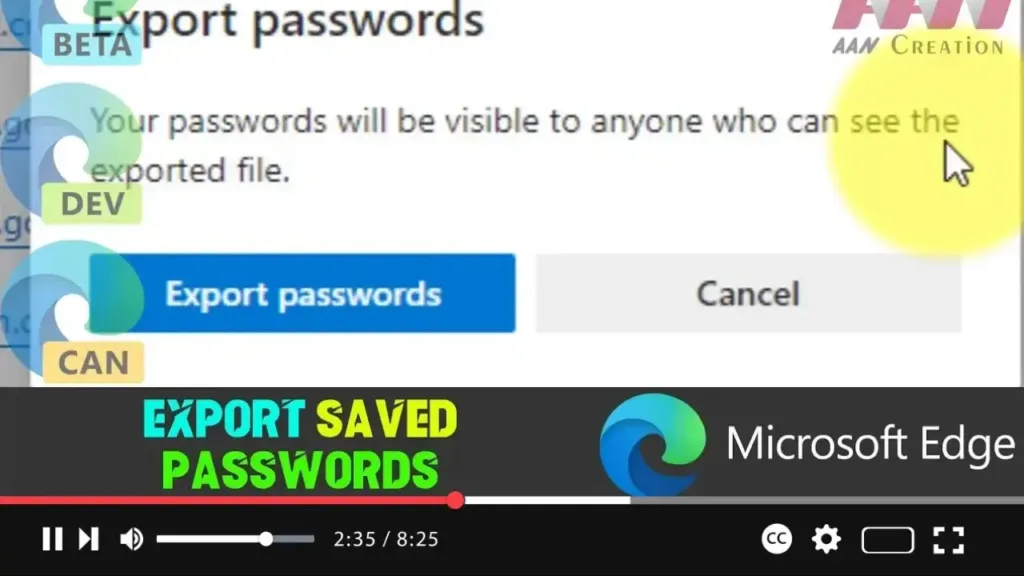

Microsoft Edge Chromium offers a convenient way to save passwords for frequently visited websites and services like email, social media, and banking platforms. This feature streamlines the sign-in process, allowing you to log in to your accounts without re-entering credentials every time. If you’re considering setting up a password manager or switching to a different web browser, you can easily export your saved passwords from Microsoft Edge. The browser allows you to export your passwords to a CSV file, which can be imported into another application or stored securely for future use.
Steps to Export Saved Passwords in Microsoft Edge
Step 1: Open Microsoft Edge
- Launch the Microsoft Edge browser on your Windows 10 computer.
Step 2: Access the Settings Menu
- Click on the Settings and More (three-dotted) button located at the top-right corner of the browser window.
- From the drop-down menu, select Settings.
.webp)
Step 3: Navigate to the Passwords Section
- In the Settings menu, click on the Profiles tab on the left-hand side.
- Under the “Your profile” section, click on Passwords to access the saved passwords page.
Step 4: Export Your Saved Passwords
- On the Passwords page, you’ll see a list of all your saved passwords under the “Saved passwords” section.
- Click the More actions (three-dotted) button next to “Saved passwords” and select Export passwords from the menu.
Step 5: Confirm Export and Save the File
- A dialog box will appear, asking you to confirm the export. Click the Export Passwords button.
- You will be prompted to enter your device’s password to confirm your identity. Enter the password to proceed.
- After confirming, a file explorer window will open, allowing you to choose a location to save the exported CSV file.
- Select your desired folder, name the file, and click the Save button.
.webp)
Additional Information
-
CSV File Format: The exported file will be in .csv format, which is a plain text file containing your passwords and associated account information. This file can be opened in spreadsheet programs like Microsoft Excel or imported into most password managers that support CSV imports.
-
Security Considerations: The exported CSV file contains sensitive information—your passwords in plain text. It’s crucial to store this file in a secure location, such as an encrypted folder or external drive. Avoid leaving the file in accessible places on your computer where unauthorized users might find it.
-
Importing Passwords: If you’re switching browsers or setting up a password manager, you can use this CSV file to import your saved passwords into the new application. Most password managers and browsers offer an option to import passwords from a CSV file.
Exporting your saved passwords from Microsoft Edge Chromium is a straightforward process that ensures you have a backup of your credentials or a way to transition to a new browser or password manager without losing your login information. Always remember to handle the exported file with care, considering the sensitive nature of its contents.

