


YouTube is the world’s largest video-sharing website. Usually, it works
flawlessly while watching videos. However, it occasionally becomes stuck
and displays a black screen, which can be extremely inconvenient. If
you’re having trouble with Google Chrome, you’ve come to the right place.
Here’s how to troubleshoot and resolve YouTube’s black screen and videos
not playing in Chrome.
flawlessly while watching videos. However, it occasionally becomes stuck
and displays a black screen, which can be extremely inconvenient. If
you’re having trouble with Google Chrome, you’ve come to the right place.
Here’s how to troubleshoot and resolve YouTube’s black screen and videos
not playing in Chrome.
There could be numerous causes for black screen errors on YouTube. It’s
possible that an ad blocker is causing the problem. In only a few cases
has the browser, computer, or network been the true culprit. Some of the
working solutions to the YouTube black screen problem are listed
below.
possible that an ad blocker is causing the problem. In only a few cases
has the browser, computer, or network been the true culprit. Some of the
working solutions to the YouTube black screen problem are listed
below.
1. Open The Webpage in An Incognito Window
If you are experiencing a YouTube black screen, the first thing you
should do is open the webpage in a new incognito window.
should do is open the webpage in a new incognito window.

(adsbygoogle = window.adsbygoogle || []).push({});
It will assist in determining whether an extension is causing the
problem. In the incognito window, the majority of extensions do not
work (unless enabled manually). If the video plays normally in
incognito, it’s likely that one of your extensions is causing the
issue.
problem. In the incognito window, the majority of extensions do not
work (unless enabled manually). If the video plays normally in
incognito, it’s likely that one of your extensions is causing the
issue.
The ad blocker extension is usually the one that prevents YouTube
videos from loading To open a new incognito window, tap on the
three-dot menu icon and the New Incognito window option.
videos from loading To open a new incognito window, tap on the
three-dot menu icon and the New Incognito window option.
2. Disable Ad Blocker Extension
In my experience, some ad blocker extensions, too, can cause the
black screen issue on YouTube. If you have an ad blocker installed in
Chrome, disable it and refresh the page to see if it resolves the
issue.
black screen issue on YouTube. If you have an ad blocker installed in
Chrome, disable it and refresh the page to see if it resolves the
issue.
01. To disable the ad blocker, type
chrome://extensions in your address
bar to visit the Extensions page.
chrome://extensions in your address
bar to visit the Extensions page.
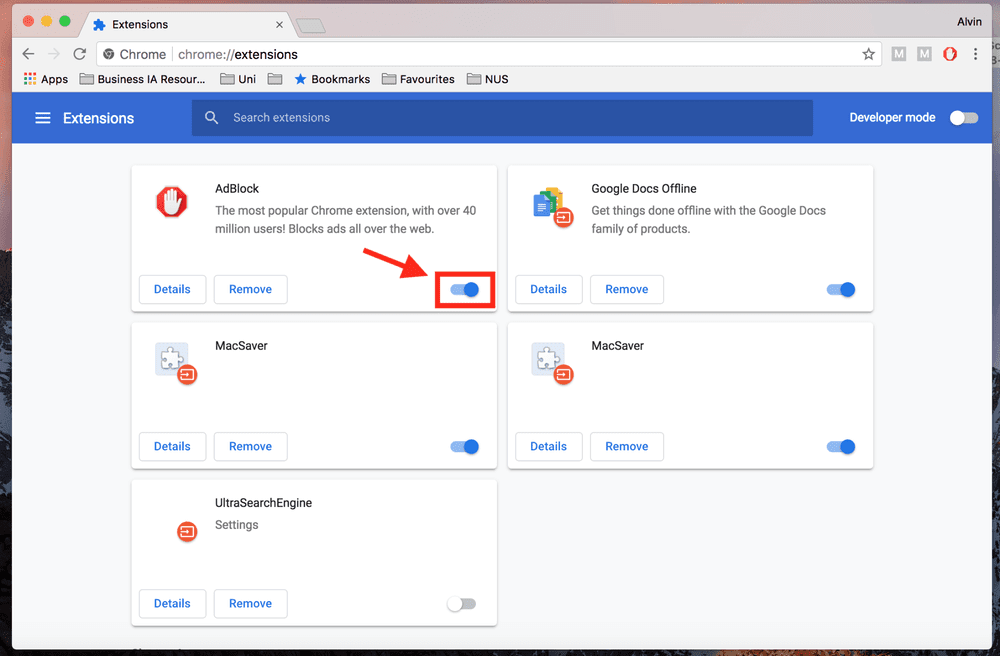
02. Find the Adblocker extension you are using and disable it.
If disabling the extension solves the problem, delete it from Chrome
and try other extensions.
and try other extensions.
3. Disable Hardware Acceleration
Hardware acceleration is a feature present in most new-age browsers.
All it does is direct some workload to the GPU rather than the CPU.
This improves the overall browsing experience. However, hardware
acceleration can sometimes cause the YouTube black screen issue.
All it does is direct some workload to the GPU rather than the CPU.
This improves the overall browsing experience. However, hardware
acceleration can sometimes cause the YouTube black screen issue.
01. To determine whether or not hardware acceleration is enabled,
type & enter
chrome://settings/system in the
address bar.
type & enter
chrome://settings/system in the
address bar.
02. Look for the option Use hardware acceleration when available in
the system settings.
the system settings.
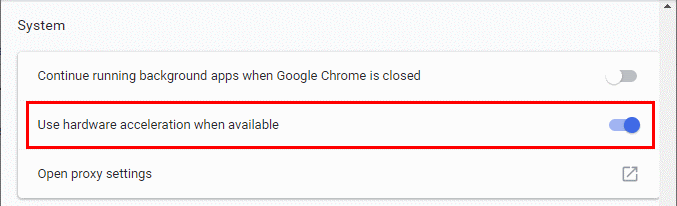
If enabled, disable it by turning off the. To make the change take
effect, you may need to restart your browser.
effect, you may need to restart your browser.
4. Clear Browsing Data
If nothing else works, try clearing your browsing history. There
could be a caching issue, or you may not have cleared the browsing
data in a long time.
could be a caching issue, or you may not have cleared the browsing
data in a long time.
01. Type
chrome://settings/clearBrowserData
in the Chrome address bar & hit enter.
chrome://settings/clearBrowserData
in the Chrome address bar & hit enter.

(adsbygoogle = window.adsbygoogle || []).push({});
02. Select the Advanced tab & select All time. Then select the
options for Browsing History, Download History, Clear Cache, and
Cookies.
options for Browsing History, Download History, Clear Cache, and
Cookies.
03. Once done, tap on Clear data. It will clear your browsing history
and resolve the YouTube black screen issue.
and resolve the YouTube black screen issue.
(Fixed) YouTube Black Screen in Chrome
These were four effective methods for resolving YouTube black screen
errors in Google Chrome. It is usually caused by adblocker extensions,
which can be disabled. If you do not use any such extensions,
try to disable hardware acceleration or clear your browsing
data.
errors in Google Chrome. It is usually caused by adblocker extensions,
which can be disabled. If you do not use any such extensions,
try to disable hardware acceleration or clear your browsing
data.

