
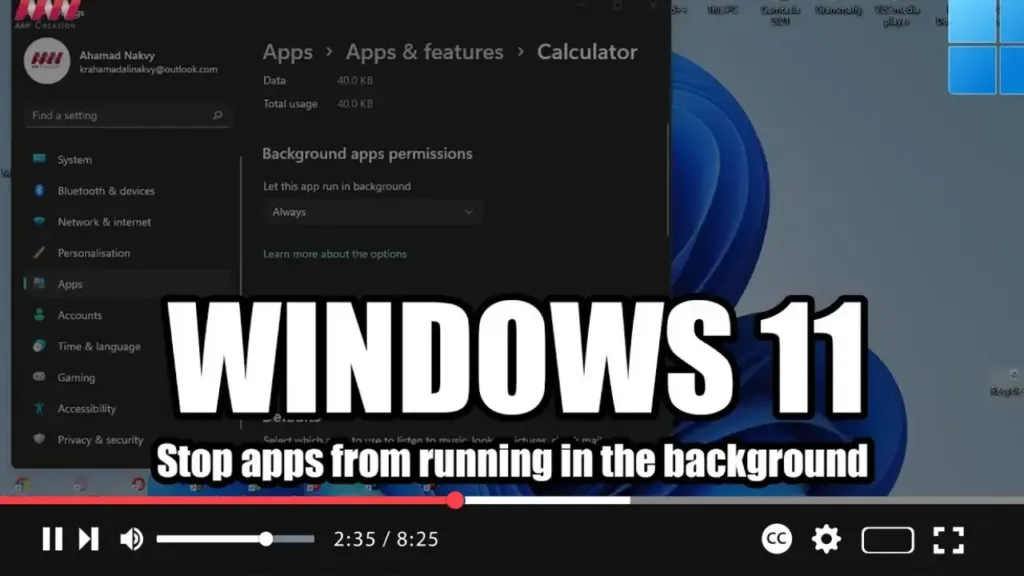

On Windows 11, apps from the Microsoft Store can continue to run in the background to download data and provide notifications for updates.
In previous versions of the OS, the Privacy settings included a page to decide whether apps should run in the background globally or per application, but this is no longer the case on Windows 11. In this new version of the OS, you need to configure the background permissions per app individually through the Apps settings.
In this guide, you will learn the steps to decide which applications should keep running in the background on Windows 11. Use these steps:
Step 01: Open Settings Open Settings on Windows 11.
Step 02: Navigate to Apps Click on Apps.
Step 03: Access Apps & Features Click on Apps & features on the right side.
Step 04: Open App Menu Click the menu (three-dotted) button for the Windows 11 app you want to change its settings.
.webp)
Step 05: Open Advanced Options Click on Advanced options.
Step 06: Adjust Background Permissions Under the “Background apps permissions” section, use the drop-down menu, and select the Never option to stop the app from running in the background on Windows 11.
The default option is Power optimized, meaning that Windows 11 will manage the app automatically. The Always option can be used to allow an app to always run in the background.
Once you complete the steps, the app you configured will no longer run in the background on Windows 11.

