
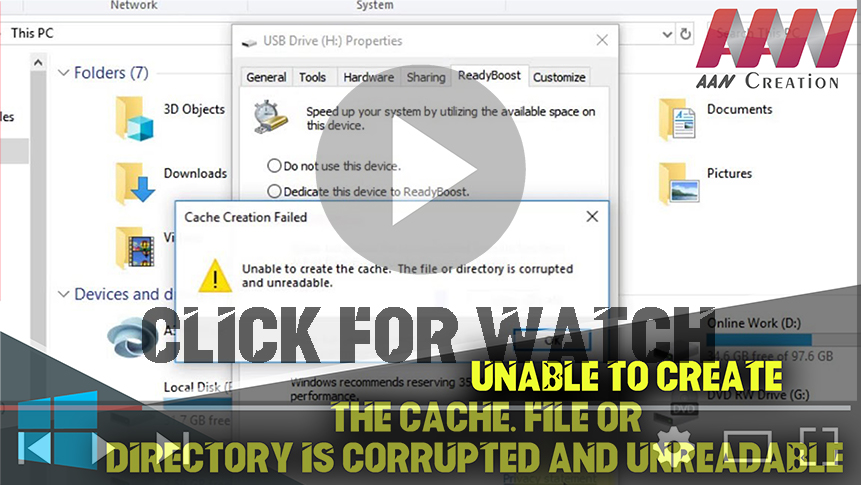

Unable to Create the Cache. File or Directory is Corrupted and Unreadable. A damaged file system usually causes this issue. & since we’re talking about flash drives, it’s most likely NTFS or FAT. The flash drive can also be infected with viruses & malware, which is quite possible because of the portability of USB drives.
Bad sectors are another potential cause. Over time, these sectors become more & more damaged, & eventually, the file system simply can no longer get full access to files; these sectors interfere with it.
The last potential cause is the human factor; namely, inappropriate use of a flash drive & its incorrect removal from card readers. You can insecurely disconnect a USB drive for a long-time, but at any time it can be damaged. no one can avoid this forever.
That is why it’s so important to remove flash drives properly.
Method 1. Remove the ReadyBoost
01. Delete the file : ReadyBoost.sfcache
02. Right Click The USB DRIVE
03. Just Format The USB DRIVE
After that, check if everything is alright.
(adsbygoogle = window.adsbygoogle || []).push({});
Method 2. Run antivirus and restart the PC
Method 2. Run antivirus and restart the PC
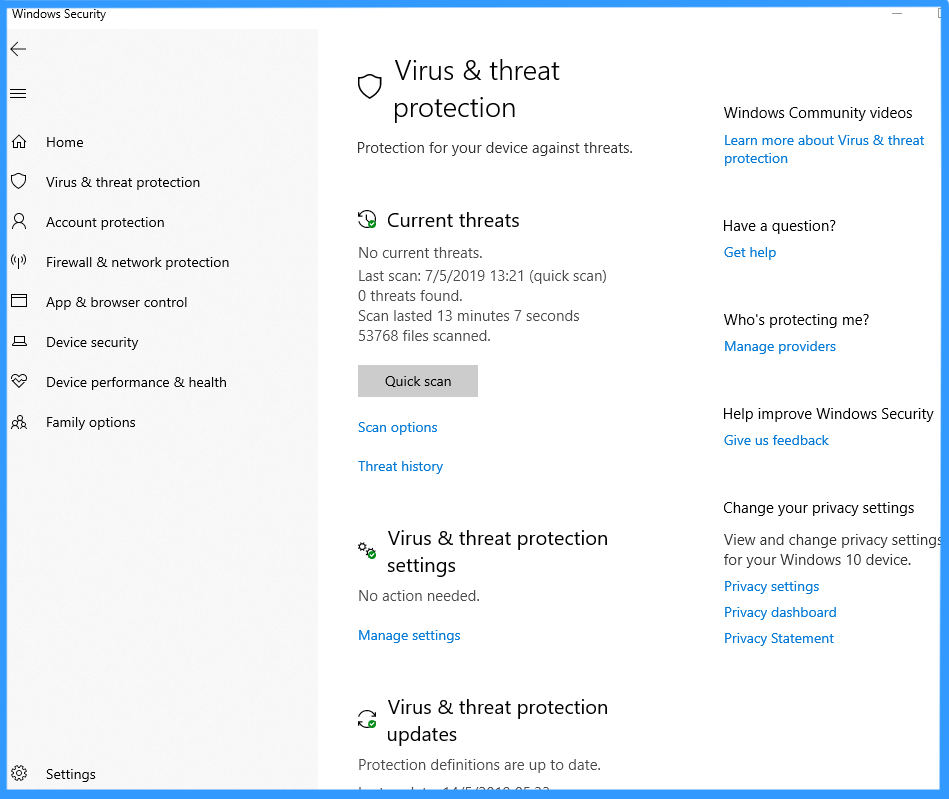
One of the reasons the file or directory may be corrupted & unreadable is a virus. so start your antivirus program & restart the computer after scanning. After that, check if everything is all right.
Method 3. Try to open the USB drive on another PC
A different OS or another version of Windows/computer may yield better results since you can also check the compatibility of the USB flash drive with these systems. After that, check if everything is all right.
Method 4. Run CHKDSK carefully.

If there are any important pictures, documents, music, or other data & you need to restore them, use DiskInternals Partition Recovery. Here you can get by with reading-mode to open files or in recovery mode to have the full permission of the data. Only after your recoverable data is no longer at risk, use CHKDSK. This utility will destroy data on a USB flash drive, so back up your data first.
Method 5. Formatting as a last resort
If the error “the file directory is corrupted & unreadable” hasn’t been resolved by any of the previous methods, then you have one way out: formatting. Yes, it’s a radical solution, but if you use DiskInternals Partition Recovery, your data Won’t disappear without a trace.
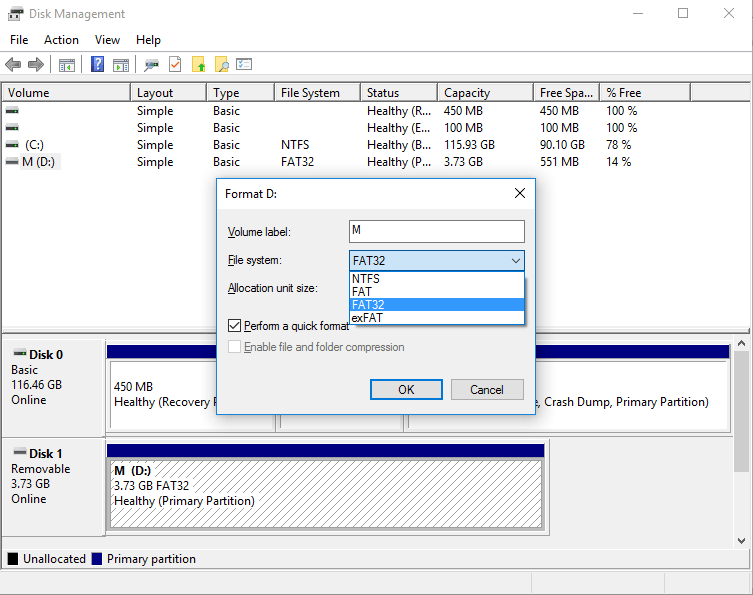
In Disk Management, select your removable device with the right-click. Now click on Format & follow the recommendations of the Wizard. Afterward, don’t forget that the computer will need a reboot.

